EnGenius ECW515 Access Point Review
It has been a bit over a year since I reviewed an EnGenius networking product, with my last review being the EnGenius ECW520.
EnGenius has now sent me their new ECW515 in-wall access point, which, as the name suggests, mounts on the wall, with the uplink port connecting to the back of the AP.
Other than the alternative mounting location, the main benefit of this access point is the inclusion of additional Ethernet ports, allowing it to work as a small switch to extend the network. This also includes a PoE out port, so you can power an additional device.
It is a dual-band access point, so unlike the ECW520 there is no 6 GHz radio. It qualifies as Wi-Fi 7 because it supports 802.11be features such as 4096-QAM, Multi-Link Operation (MLO) and multi-RU on the 2.4 GHz and 5 GHz bands, rather than because of any extra spectrum. That makes it a very different proposition from the tri-band ceiling APs I normally test, and it is best judged as a utility device that adds Wi-Fi and wired ports to a room from a single cable run.
Specification
| Specification | ECW515 |
|---|---|
| Type | Cloud-managed indoor wireless access point |
| Wi-Fi standard | Wi-Fi 7 (IEEE 802.11be), backwards compatible with 802.11b/g/n/ac/ax |
| Wireless bands | Dual-band 2.4 GHz and 5 GHz; simultaneous operation |
| Maximum wireless data rates | 2.4 GHz: 700 Mbps; 5 GHz: 2,900 Mbps; combined: 3,600 Mbps |
| Spatial streams | 2×2 MIMO, two spatial streams per band |
| Maximum channel width | 2.4 GHz: 40 MHz; 5 GHz: 160 MHz |
| Wireless technologies | SU-MIMO, MU-MIMO, OFDMA, transmit beamforming and 4096-QAM |
| Processor | Qualcomm Networking Pro 1220 |
| Antennas | 2 x 5 dBi antennas per band |
| Maximum transmit power | 2.4 GHz: 21 dBm; 5 GHz: 22 dBm, subject to regional limits |
| Ethernet ports | 1 x 2.5GbE RJ45 with PoE input; 4 x Gigabit Ethernet RJ45 |
| PoE output | 802.3af on LAN5; 7 W when powered by PoE+, up to 15 W when powered by DC |
| Operating modes | Access point, Mesh and Mesh AP |
| Maximum concurrent clients | Up to 100 |
| SSIDs | 8 SSIDs for 2.4 GHz and 5 GHz |
| VLAN support | 802.1Q SSID-to-VLAN tagging, cross-band VLAN pass-through and management VLAN |
| Wireless security | WPA3 Enterprise, WPA3-Personal (SAE), WPA2 Enterprise, WPA2-Personal and WPA2/WPA3 mixed mode |
| Network isolation | Client isolation, Layer 2 isolation and MAC address filtering |
| Management protocols | SNMP v1, v2c and v3 |
| Quality of service | IEEE 802.11e / WMM |
| Power input | IEEE 802.3at PoE+ or 54 V DC, 1 A power adaptor |
| Maximum power consumption | 18 W via PoE; 26 W via DC |
| Power accessories | DC power adaptor and PoE+ injector not included |
| Operating temperature | 0°C to 40°C |
| Operating humidity | Up to 90%, non-condensing |
| Dimensions | 130 x 110 x 42 mm |
| Weight | 328 g |
| Included accessories | Ceiling/wall mounting screw kits, tall/short junction plates and quick installation guide |
| Warranty | 5 years |
Design
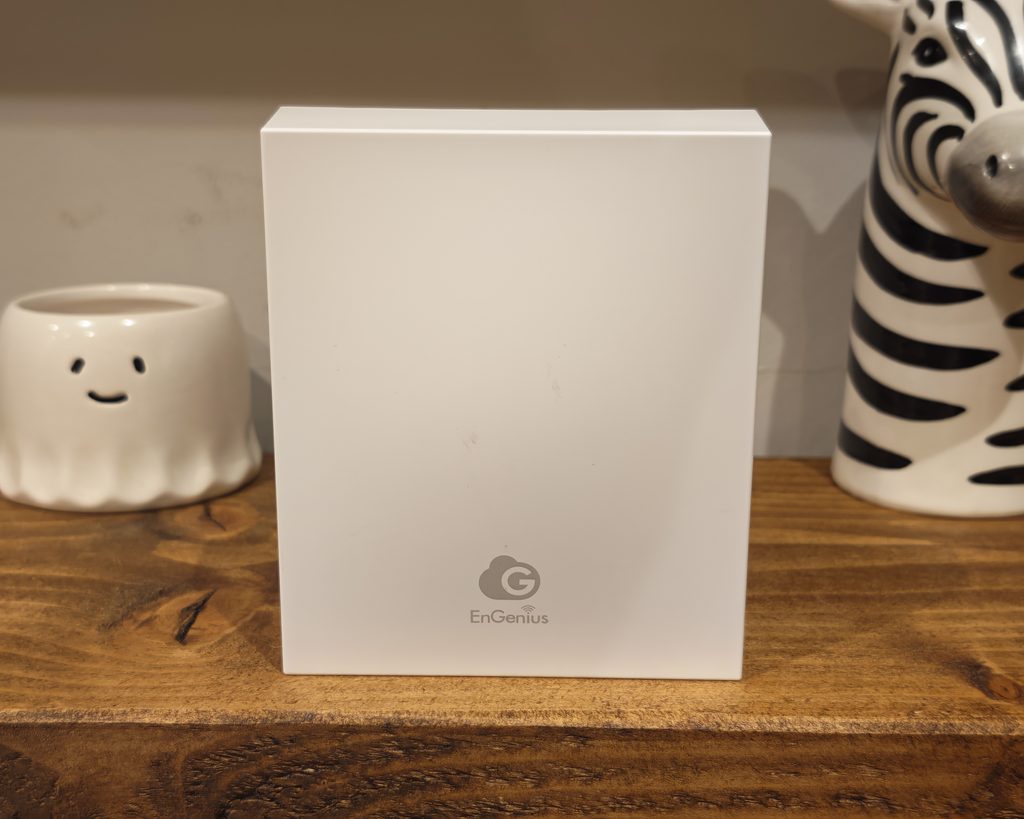
This is unlike the other EnGenius access points I have reviewed, which are all traditional ceiling-mounted APs.
With this, it is wall-mounted, with the uplink port in the back of the AP and Ethernet out of the wall into the back of the AP.
The other big difference here is that this includes four additional Ethernet ports on the bottom, including a 2nd uplink port, one gigabit PoE out port and two additional gigabit ports.
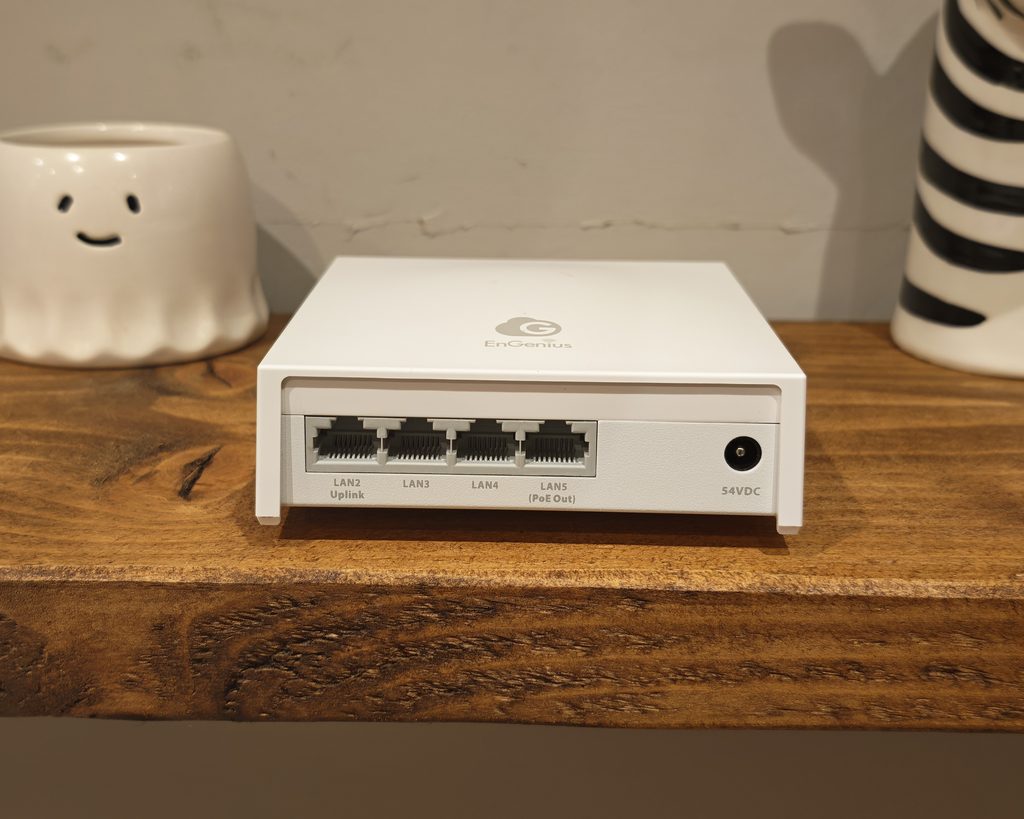
It is a bit disappointing that the main uplink port is 2.5GbE, but none of the additional ports is 2.5GbE.
Like most EnGenius APs, this also benefits from a DC port input, giving you some flexibility on how to power it, but no power adaptor is included.
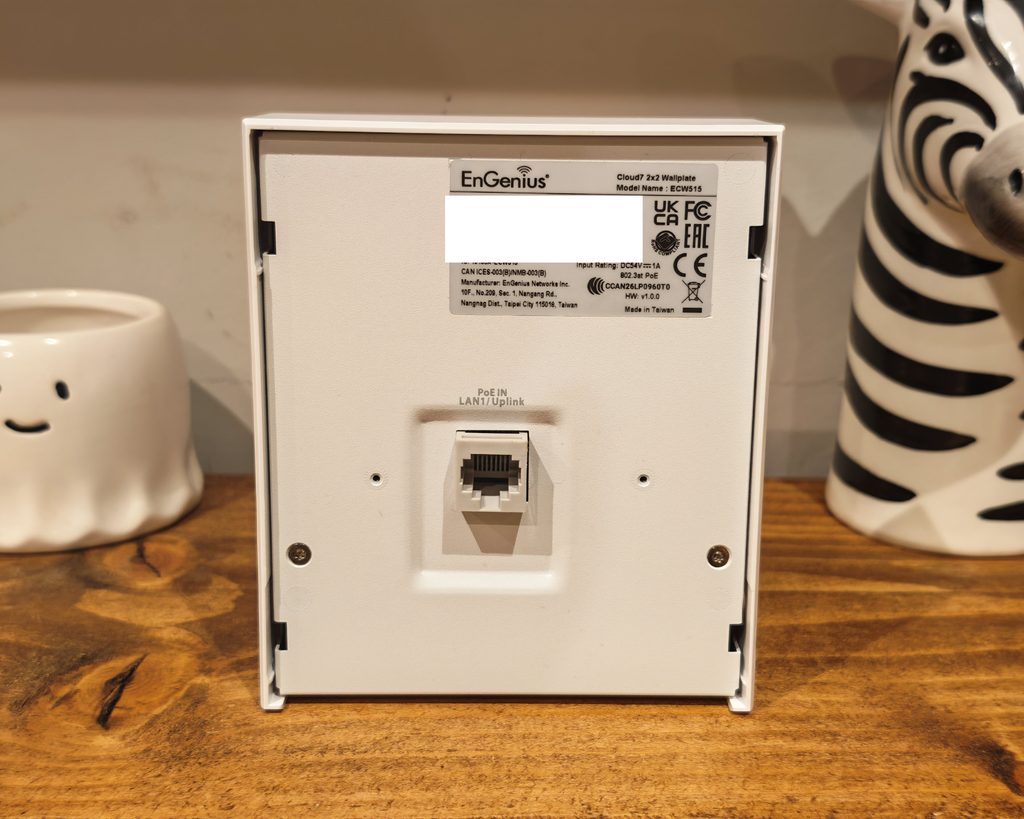
This makes it appealing for home users or small businesses where you may not have run lots of Ethernet cable for multiple ports per room. In a commercial environment, I would say this will likely be best suited as a utility AP to extend the network to less-used parts of an office/building.
Physically, it is a plain white box with a small EnGenius Cloud logo on the front. The front cover is plastic, while the rear is a metal plate that also acts as the heatsink. The PoE IN LAN1/Uplink port sits in a recessed well in the middle of the rear panel, so a cable coming out of a wall box or keystone jack plugs straight in behind the unit. The bottom edge has the four Gigabit ports, labelled LAN2 Uplink, LAN3, LAN4 and LAN5 (PoE Out), alongside the 54 V DC barrel input. The reset pinhole is on the side, and the label on the back marks it as indoor only.
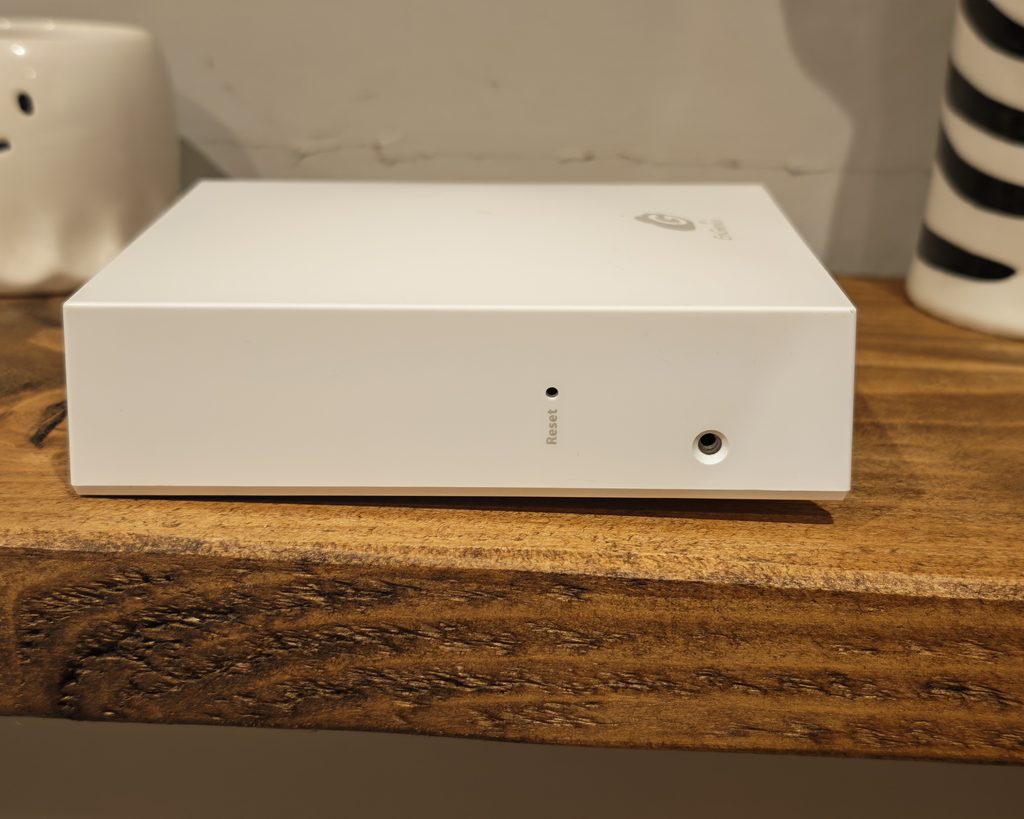
At 130 x 110 x 42 mm, it is compact for a device with five Ethernet ports, but it sits further off the wall than a flush wall plate and is a little larger than the UniFi U7 In-Wall. It is fanless, so it is silent in use. The metal rear gets warm to the touch after a few hours, which is expected as it is doing the job of a heatsink, but I did not see any instability or drop in performance that I could attribute to heat. If you are thinking of 3D printing your own mount rather than using the supplied plate, PETG would be a safer choice than PLA.
Set Up
If you are familiar with EnGenius products, then the set-up is a breeze. You can either scan the QR code on the back of the AP using the EnGenius Cloud app or manually add the serial number to the web-based interface. You then just need to assign it to the network, and it will pick up any existing WiFi settings.
In my case, the AP updated itself to firmware 1.9.106 shortly after adoption and started broadcasting the SSIDs I already had configured for my EnGenius test network, with the country set to the United Kingdom in the radio settings. The whole process took a few minutes, most of which was waiting for the firmware update.
The main thing to plan for is power. There is no PoE injector or DC adaptor in the box, and the AP needs 802.3at PoE+ rather than standard 802.3af PoE, so an older PoE switch or a cheap injector may not be enough. EnGenius quotes 18 W maximum consumption over PoE, excluding anything you power from the PoE out port. I powered mine from a PoE+ switch, which is how most people will deploy it.
It is also worth being clear that this is a cloud-managed access point, so you need an EnGenius account. There is a local web page, but it is limited to status information and firmware updates. You cannot configure SSIDs or ports from it, so there is no true standalone mode.
EnGenius Cloud Settings
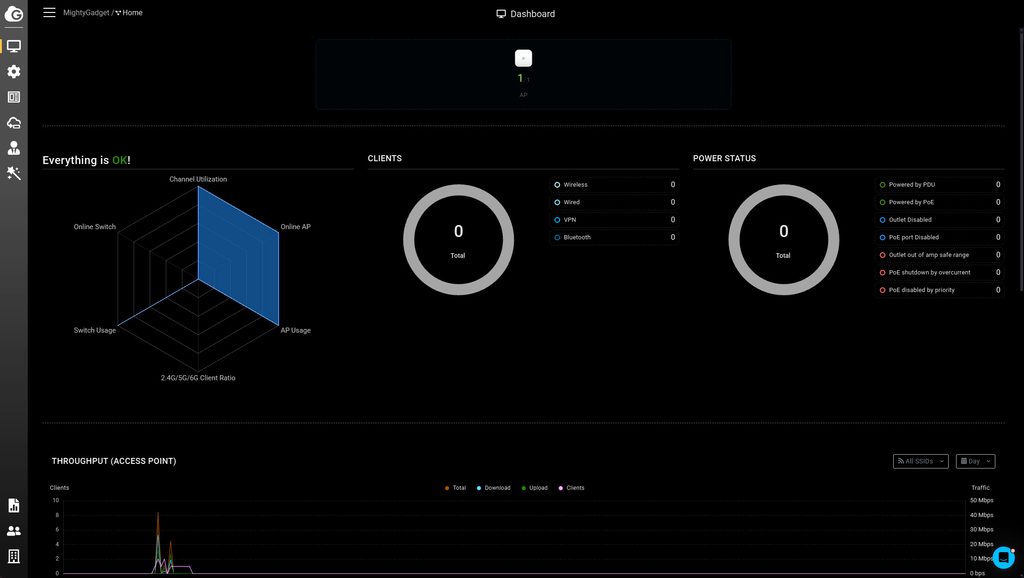
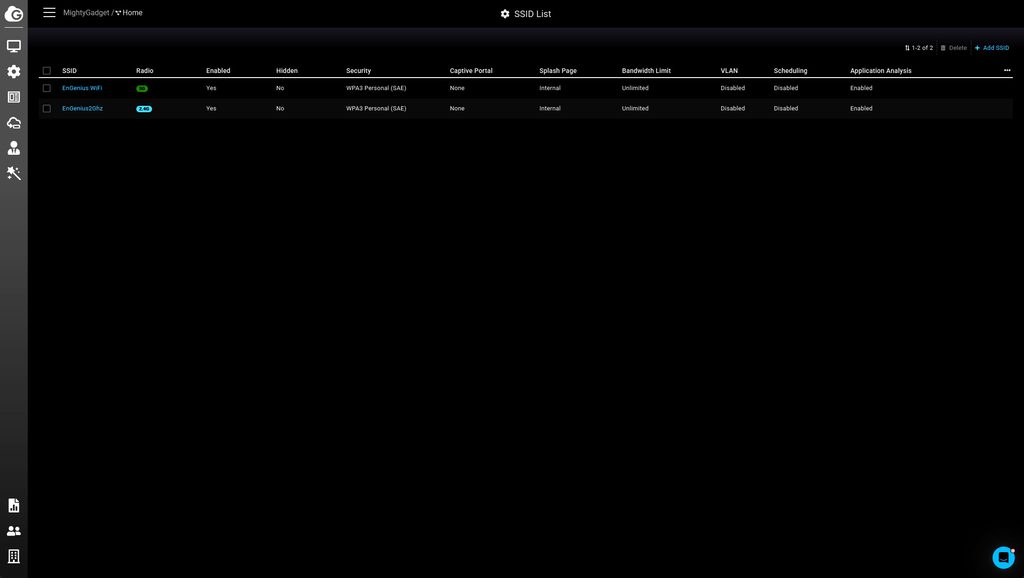
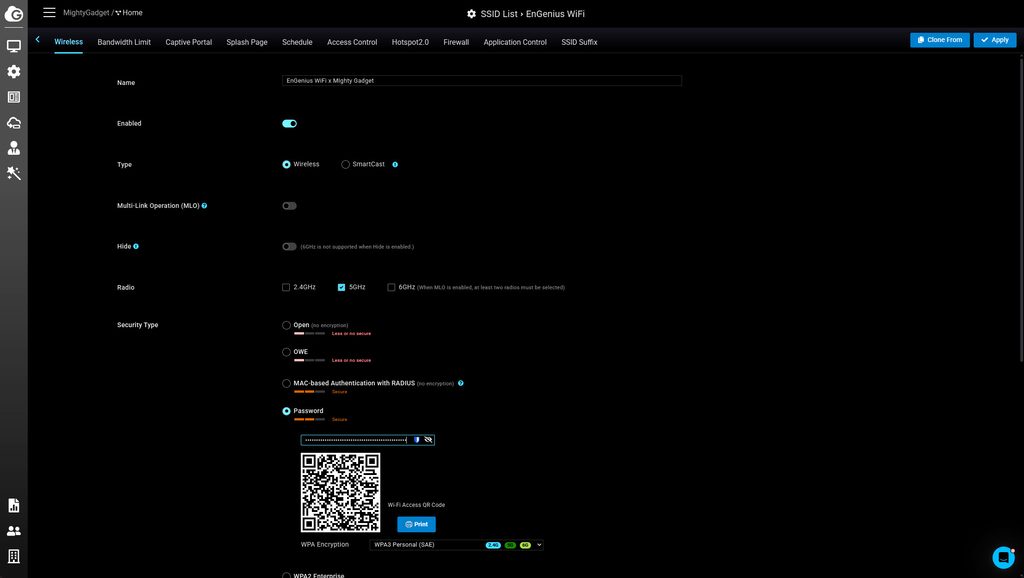
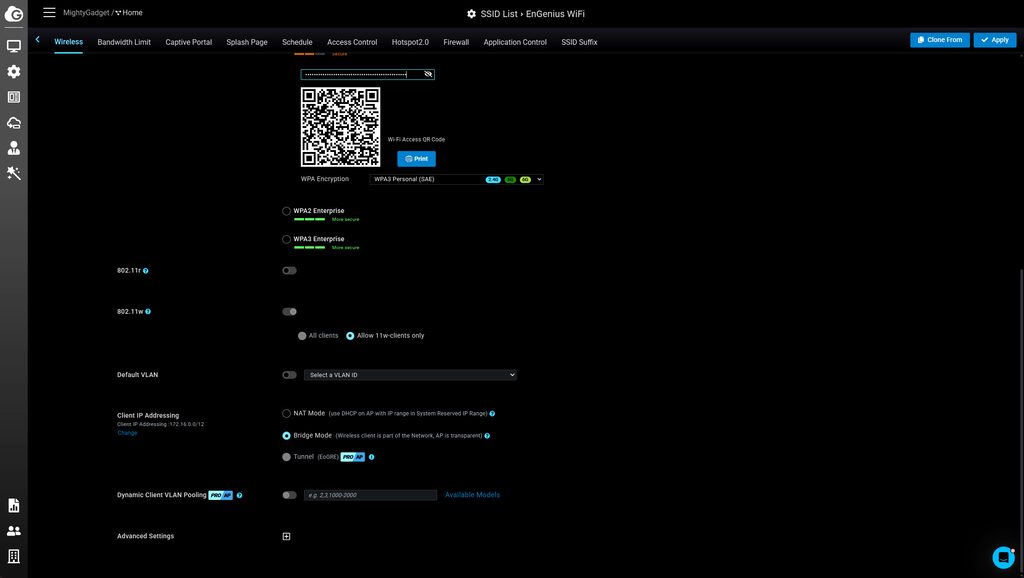
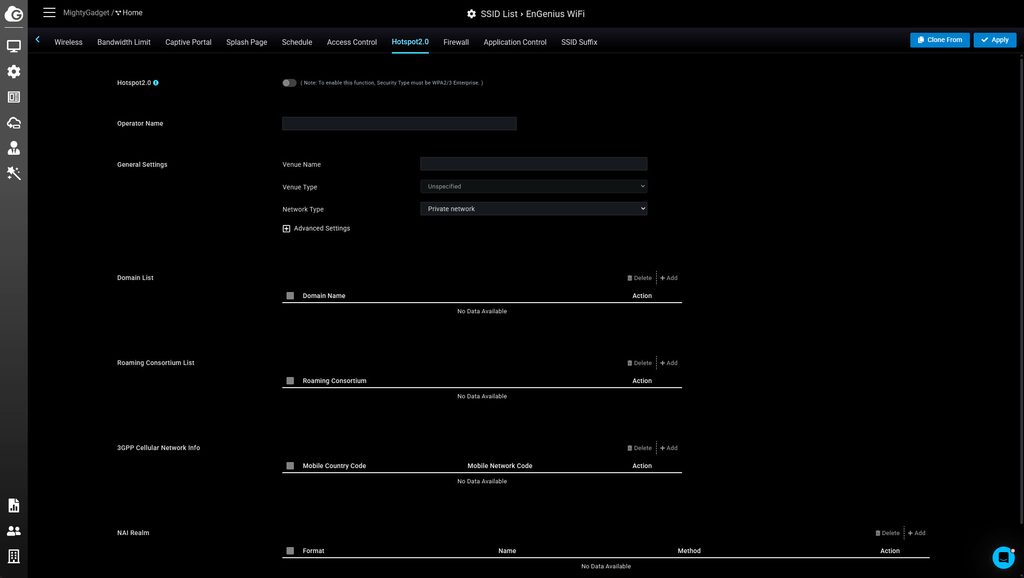
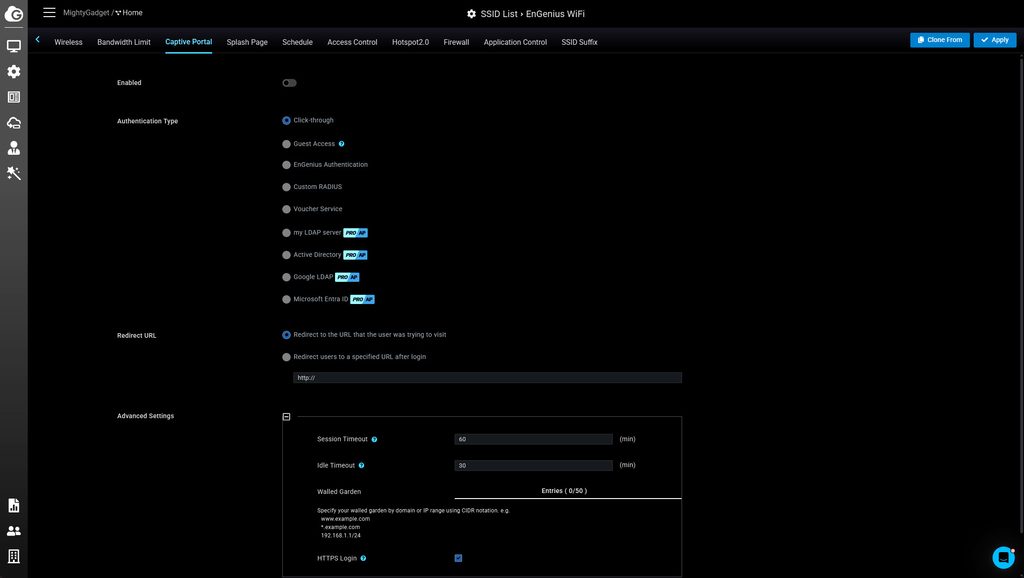
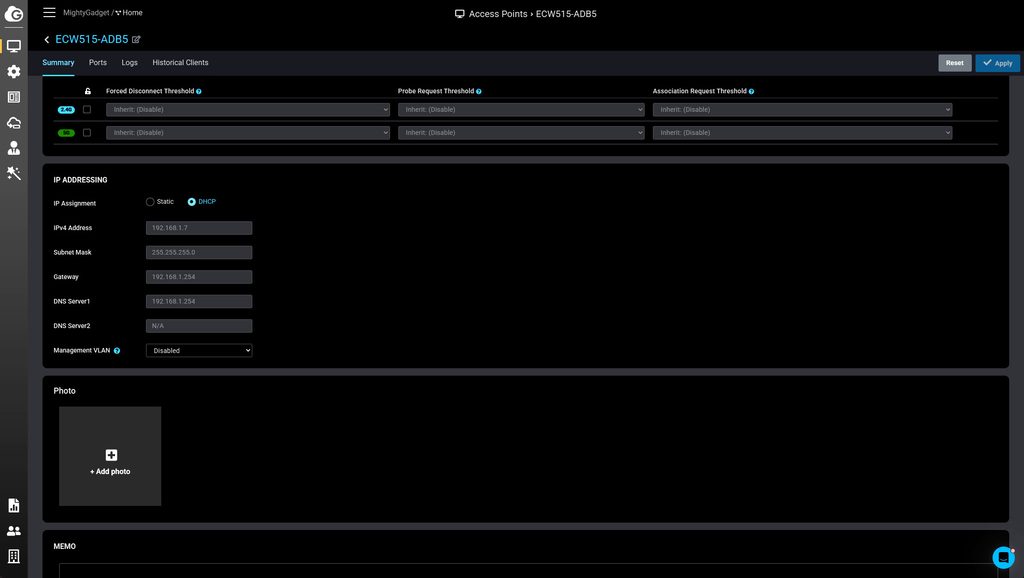
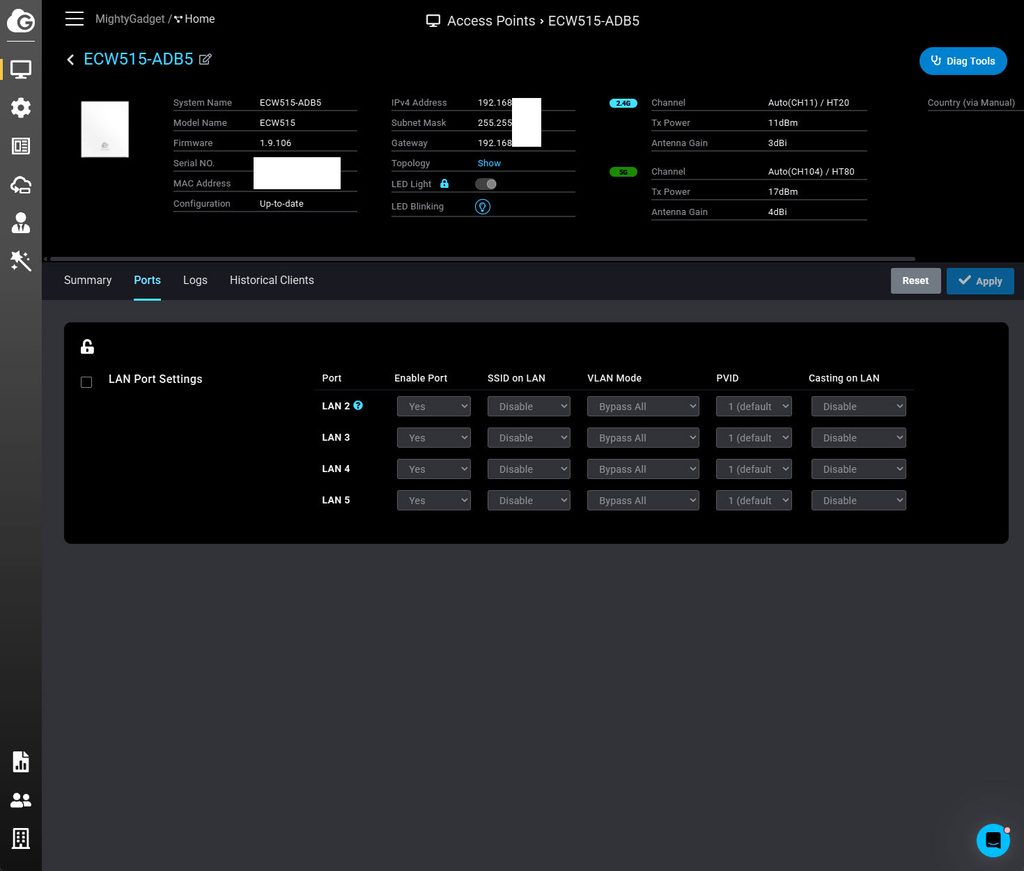
The ECW515 uses the same EnGenius Cloud interface as the rest of the range, so if you have used the ECW520 or any other EnGenius cloud product, nothing here will be unfamiliar. You can create multiple organisations, each with multiple networks, and settings defined at network level are inherited by every AP added to it.
The dashboard gives a quick overview of the health of the network, with a radar chart covering channel utilisation, AP and switch usage and the 2.4/5/6 GHz client ratio, along with client counts and throughput graphs. There is also a power status panel, which is more useful if you have EnGenius PoE switches or PDUs reporting into the same network.
Opening the AP itself shows the system details, IP address, current channels, transmit power and antenna gain, with tabs for Summary, Ports, Logs and Historical Clients. The Summary tab lets you override the network-wide radio settings for this specific AP, including channel, target transmit power, minimum bitrate, client limit and channel width, as well as the IP addressing and management VLAN.
The Ports tab is where the ECW515 differs from a normal AP. Each of the four Gigabit ports can be enabled or disabled, assigned a VLAN mode and PVID, and set up with “SSID on LAN”. This binds a chosen SSID’s settings to a wired port, so a device plugged into the wall plate gets the same VLAN, security policy and captive portal as a wireless client on that SSID. For a hotel room, a meeting room or a home office with a guest network, that is a smart feature, and it means the wired ports do not have to be a back door into your main network. There is also a “Casting on LAN” option for wired casting devices.
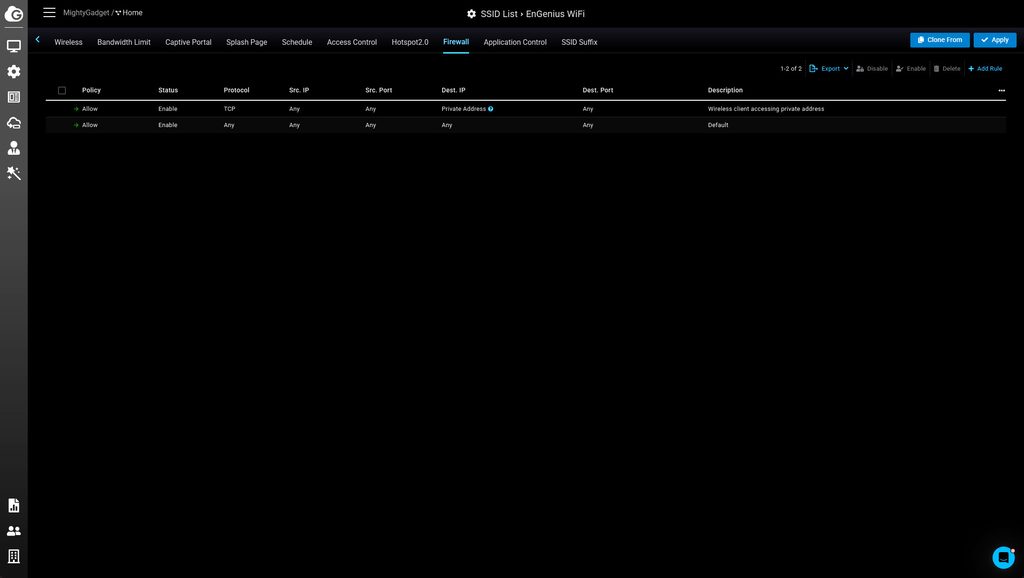
The SSID settings are comprehensive for an AP at this level. For each SSID, you can choose the radios, enable MLO, hide the network and pick from open, OWE, MAC-based RADIUS, WPA3 Personal (SAE), and WPA2 or WPA3 Enterprise security. There are toggles for 802.11r fast roaming and 802.11w protected management frames, a default VLAN, and a choice of NAT mode, bridge mode or a tunnel (EoGRE) for client addressing. Along the top, you also get tabs for bandwidth limits, captive portal, splash page, schedules, access control, Hotspot 2.0, firewall rules, application control and SSID suffixes.
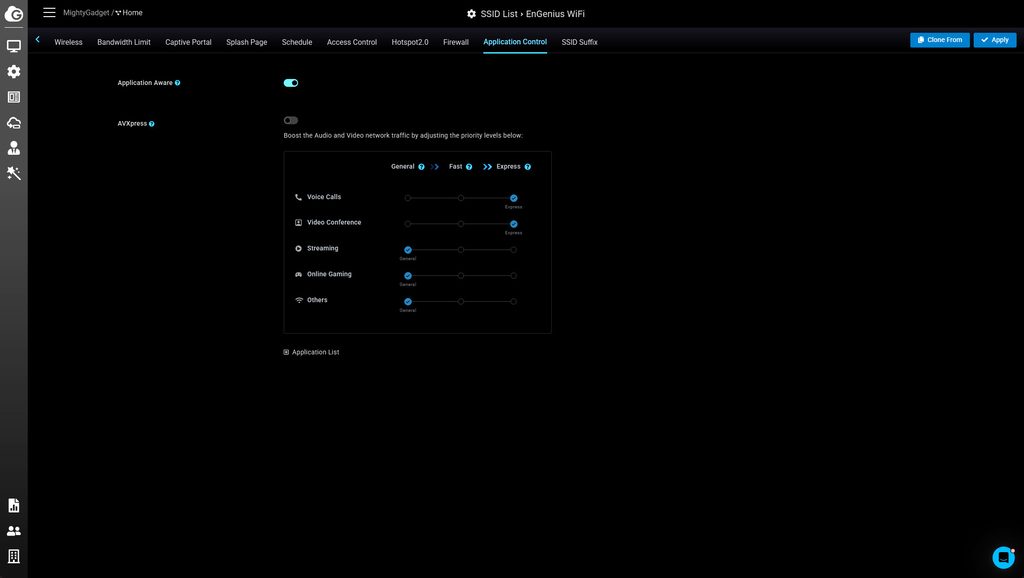
The captive portal supports click-through, guest access, EnGenius authentication, custom RADIUS and a voucher service on the free tier. LDAP, Active Directory, Google LDAP and Microsoft Entra ID authentication are marked as Pro features. Hotspot 2.0 is available but requires WPA2 or WPA3 Enterprise. Application control includes AVXpress, which lets you prioritise voice calls, video conferencing, streaming and online gaming at General, Fast or Express levels. That is a sensible inclusion for a device aimed at meeting rooms, though application analysis does carry a small performance cost.
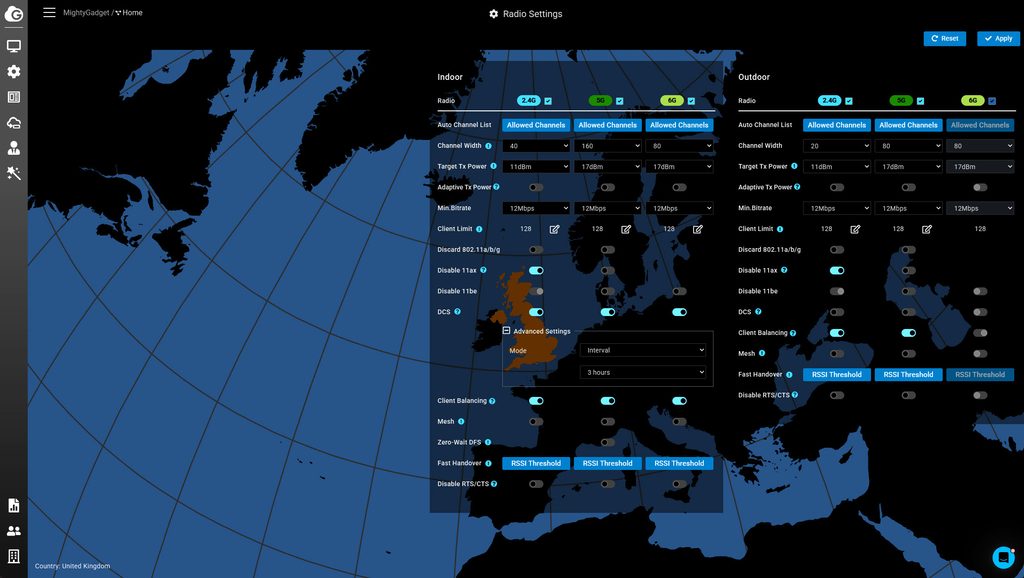
Radio Settings is where you set the defaults for the whole network, with separate indoor and outdoor profiles. You can set channel width, target transmit power, minimum bitrate, client limit, dynamic channel selection (DCS) intervals, client balancing, mesh, zero-wait DFS and fast handover RSSI thresholds per band. For a home network with one or two APs, the defaults are fine. For a larger deployment, the level of control is on a par with UniFi and Omada.
Most of what a home user or small business needs is included in the free Basic tier, which is one of the stronger arguments for EnGenius over some rivals. A Pro licence unlocks longer log retention, topology views, more detailed client troubleshooting and the directory-based captive portal options. In the UK, that has been quoted at around £57 per device for one year or £136 for three years. That is reasonable for a business, but it does add to the running cost, and UniFi does not charge for equivalent features if you already own a UniFi gateway.
My main criticism of the interface is that changes are not always instant. Applying settings can take anywhere from a few seconds to a couple of minutes to reach the AP, which can be frustrating when you are troubleshooting and want to see the effect of a change straight away.
Ethernet & PoE Passthrough
The wired ports are what make this AP worth considering over a standard ceiling unit, so they deserve some explanation.
When the ECW515 is powered by PoE+, the 2.5GbE port on the back is the uplink, and the four Gigabit ports on the bottom behave like a small unmanaged switch with cloud control. If you power the AP with a 54 V DC adaptor instead, LAN2 can act as a non-PoE uplink, and the rear 2.5GbE port then works as a LAN port. That gives some flexibility if the cable in the wall is not PoE capable.
LAN5 provides 802.3af PoE output, but the power budget is limited. When the AP is itself powered by PoE+, LAN5 can supply up to 7 W. That figure makes sense when you consider that PoE+ delivers around 25.5 W at the device and the AP can draw up to 18 W itself. Powering the AP from a 54 V DC adaptor raises the PoE output to 15 W, which is the full 802.3af allowance. EnGenius does not make this especially obvious, and it determines what you can realistically plug in.
To test it, I connected a Reolink TrackMix PoE camera to LAN5. This is a large dual-lens PTZ camera with motors, so it is a fairly demanding device for a 7 W port. On the first attempt, the camera clearly received power, as the PTZ mechanism moved, but it did not complete its boot or appear in the Reolink app for some time. Connecting it directly to my PoE switch brought it online quickly, so I then moved it back to the ECW515. After a noticeably longer start-up, it fully booted, picked up an IP address, and both lenses streamed video with working PTZ control. Once running, there was no lag or dropout in the feed.
So the PoE passthrough works, but it is best suited to lower-power devices. A fixed IP camera, a VoIP phone, a small sensor hub or another low-power access point will be well within the 7 W limit. A PTZ camera with IR illumination at night is pushing it, and anything rated above 7 W will need the AP to be on DC power or a separate PoE source.
The use case is still a good one. In a garage or workshop, one cable run could provide Wi-Fi for the room, wired ports for a bench PC or a printer, and power for a camera mounted outside. Without the ECW515, that would typically mean a separate AP, a small PoE switch and more cabling.
The wired performance itself was fine. The Gigabit ports delivered full Gigabit speeds in my testing, and the 2.5GbE uplink means the AP’s wireless traffic does not have to compete with the wired clients for a single Gigabit link back to the switch. My one disappointment remains that the downstream ports are only Gigabit. The UniFi U7 In-Wall and TP-Link EAP775-Wall both offer at least one 2.5GbE downstream port, which is useful for a NAS or a desktop with a multi-gig network card.
Wi-Fi Performance
Performance is decent for the specifications.
For 5 GHz 80 MHz, I achieved close-range speeds of up to 915 Mbps when connected using WiFi 7 and 168 Mbps on 2.4 GHz 40 MHz.
Increasing the 5 GHz channel width to 160 MHz let me reach 1,208 Mbps at close range, but it is generally not recommended to use 160 MHz on 5 GHz unless it is the only AP you are using.
To put those numbers into context, a 2×2 Wi-Fi 7 connection on an 80 MHz channel has a theoretical link rate of around 1.4 Gbps, so 915 Mbps is roughly what you would expect once overheads are taken into account. At 160 MHz, the theoretical rate doubles to around 2.9 Gbps, and the 1,208 Mbps I measured is less efficient in comparison. In the UK, 160 MHz channels on 5 GHz overlap with DFS channels, which can be vacated if radar is detected, and a single 160 MHz channel takes up a large share of the available spectrum. With more than one AP, or neighbouring networks nearby, 80 MHz is the better choice.
The 2.4 GHz result is modest. 2.4 GHz is congested in most UK homes, and using a 40 MHz channel there rarely delivers a meaningful gain while making interference with neighbouring networks more likely. I would leave 2.4 GHz at 20 MHz and use it for IoT devices and long-range coverage rather than speed.
My tests were run with MLO turned off. With MLO enabled, a compatible Wi-Fi 7 client can link to both radios at once. In practice, MLO across 2.4 GHz and 5 GHz is more about resilience and latency than raw throughput, as the 2.4 GHz link adds relatively little bandwidth. The real benefit of MLO comes when 5 GHz is paired with 6 GHz, which this AP cannot do.
The default transmit power is quite conservative. The cloud dashboard showed 11 dBm on 2.4 GHz and 17 dBm on 5 GHz, well below the maximum of 21 dBm and 22 dBm, and it reported antenna gains of 3 dBi and 4 dBi rather than the 5 dBi listed in the specification. Lower power is sensible for dense deployments such as hotels, where you want each AP to cover one room without bleeding into the next. If you are using a single ECW515 to cover a larger area of a home, it is worth raising the target transmit power in the radio settings.
Range is in line with what you would expect from a 2×2 wall plate AP. It is designed to cover a room or a small area of a home, and other reviews suggest a realistic coverage of around 90 to 120 square metres. It is not a replacement for a centrally placed ceiling AP in a large house.
Stability was good during my testing, and I did not experience any disconnections.
Price and Alternative Options
As usual for EnGenius, the main issue you have in the UK is availability. As far as I can tell, this is not widely available in the UK or EU. Solwise, one of the few UK EnGenius resellers, has quoted around £187 including VAT, but stock appears to be limited.
In the US, it is available from engeniustech.com for $289, though it is showing as sold out at the time of writing. I was informed that the MSRP was just $199 back in April; I will assume the price has jumped up due to the price increases in hardware and various tariffs that the US keeps imposing on things.
The older Wi-Fi 6 ECW215, with two Ethernet ports, is available for $179.
In comparison, UniFi has the following:
- U7 In-Wall for $164 (£126 from the UK UniFi store) – Dual-band Wi-Fi 7, two 2.5GbE downstream ports, one with PoE out
- U7 Pro Wall for $219 (£168 in the UK) – Tri-band, no additional ports
- U6 In-Wall for £140 – Dual-band Wi-Fi 6, 1x GbE PoE output, 3x GbE ports
TP-Link has the Omada EAP775 for $200, which is tri-band Wi-Fi 7 with 2x 2.5G ports (1x PoE+/PoE++ in) plus 3x Gigabit ports (2x PoE out or 1x PoE+ out). In the UK, the EAP775-Wall is around £173. TP-Link also has the dual-band EAP725-Wall, which is the closest like-for-like rival, with one 2.5G PoE input, one 2.5G pass-through port and two Gigabit ports for around £125 to £135.
Against that field, the ECW515 is expensive. The U7 In-Wall is around £60 cheaper, supports 240 MHz channels on 5 GHz for a higher 4.3 Gbps rating, and has 2.5GbE downstream ports, though it only has two of them. The EAP775-Wall costs slightly less and adds a 6 GHz band and two PoE out ports. Where the ECW515 holds its own is in having four downstream ports, the SSID on LAN feature, and the fact that the cloud controller is hosted for you without needing a UniFi gateway or Omada controller.
Overall
If you are already committed to EnGenius, the ECW515 is a nice utility access point that works well in a home or small office where you may not have multiple Ethernet ports run to each room.
Performance is good for the specs, and most people will find 900 Mbps+ at close range more than adequate for their WiFi needs. However, the lack of the 6 GHz band does mean you can’t easily achieve the multi-gig throughput Wi-Fi 7 is known for.
For those who are not committed to a networking ecosystem, both UniFi and TP-Link Omada offer cheaper and arguably better-specced in-wall access points.
The strengths are clear. Setup is quick, the cloud platform offers more control than most people will need without a subscription, and the four Gigabit ports with SSID on LAN make it a tidy way to add wired and wireless access to a room from a single cable. The PoE passthrough works, and in the right location it can save you a separate switch and injector.
The weaknesses are mostly about value. The downstream ports are limited to Gigabit, the PoE output is restricted to 7 W unless you add a DC adaptor, and there is no power adaptor or injector in the box. There is also no meaningful local management, so you are reliant on the EnGenius cloud. UK availability is poor, and at around £187, it is hard to recommend over the U7 In-Wall or the TP-Link EAP725-Wall unless you are already running an EnGenius network.
EnGenius ECW515 Access Point Review
-
Overall - 75%75%
Summary
The EnGenius ECW515 is a capable dual-band Wi-Fi 7 wall plate access point with a useful four-port Gigabit switch and PoE passthrough. It is easy to deploy and well managed through EnGenius Cloud, and the SSID on LAN feature is a smart touch for hospitality and office use. However, the lack of 6 GHz, Gigabit-only downstream ports, a 7 W PoE output limit and high UK pricing mean it makes the most sense for existing EnGenius users.
Pros
- Four Gigabit ports plus a 2.5GbE PoE+ uplink
- PoE passthrough for a camera, phone or another AP
- SSID on LAN applies wireless security policies to wired ports
- Quick QR code setup and a capable free cloud tier
- Fanless and silent
- Five-year warranty
Cons
- No 6 GHz band
- Downstream ports are Gigabit only
- PoE output limited to 7 W when the AP is PoE powered
- No PoE injector or power adaptor included
- No standalone local management
- Expensive and hard to find in the UK

I am James, a UK-based tech enthusiast and the Editor and Owner of Mighty Gadget, which I’ve proudly run since 2007. Passionate about all things technology, my expertise spans from computers and networking to mobile, wearables, and smart home devices.
As a fitness fanatic who loves running and cycling, I also have a keen interest in fitness-related technology, and I take every opportunity to cover this niche on my blog. My diverse interests allow me to bring a unique perspective to tech blogging, merging lifestyle, fitness, and the latest tech trends.
In my academic pursuits, I earned a BSc in Information Systems Design from UCLAN, before advancing my learning with a Master’s Degree in Computing.
I’m proud to share that Vuelio has consistently ranked Mighty Gadget as one of the top technology blogs in the UK. With my dedication to technology and drive to share my insights, I aim to continue providing my readers with engaging and informative content.
I work directly with the companies I review products for or their chosen PR agency.
For Social Media, you can find me on: