Why is Virgin Fibre Internet Slow & How to Fix Slow WiFi?
Virgin Media is one of the best options on the market for ultra-fast internet. Most fibre internet running over phones lines caps out at 76Mbps, but Virgin offers up to 500Mbps in most areas and gigabit for some lucky few.
However, from time to time, those speeds are nothing like what you see in real life. This is often an issue with Virgin Media but having problems with your own home network is just as likely.
So how do you work out what is wrong and how to fix it?
Confirm it is slow
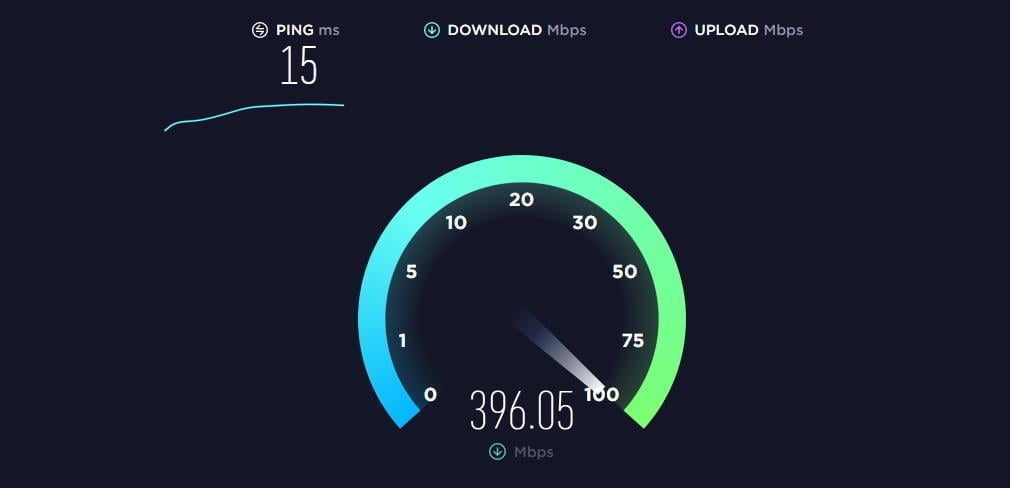
Sometimes I find sites feel like there are running slowly, or perhaps Netflix seems to be buffering, but then when I test my website speed, there is nothing wrong with the internet itself.
Speedtest.net is a popular service to check your Internet speed, you can do it via a browser, and they also have an app in the Play Store and Apple Store.
Check the Virgin Media Status Page
The first thing I always check is if there are any ongoing issues with Virgins broadband services.
Virgin have a check your service status page, and from here, you can either log in to find specific fault that may be affecting you or use the postcode check
Do a line test
If you use the sign-in option for the Virgin Media Status Page, then you can run a line test. This will allow Virgin to identify if there is a fault unique to your line or help them identify a general fault affecting users in your area.
Check the internet speed using a wired connection
If there are no problems reported by Virgin, then it could be your own network causing the problem.
If you have a laptop with an Ethernet port or computer near your router, then you should try and plug an Ethernet cable into one of the ports on the router then carry out a speed test. If it is fast, then the issue is related to your WiFi. If it is slow, it is likely something to do with the router or Virgin media themselves.
If you don’t have any devices with an Ethernet port or an Ethernet cable then you can just test it via WiFi when you are in close proximity to the router.
Switch it on and off again
The classic IT solution for problems, which is surprisingly effective. I normally switch it off at the plug socket, wait a few seconds to make sure it is completely off and switch it back on again.
You will need to wait a little while for the router to establish a connection. I’d recommend testing the router via a wired connection again, if possible.
Check the WiFi speed
Speedtest will check your Internet connection, but if your WiFi is running slower than the internet than then you will see a lower score.
The WiFi Speed Test app will do a local speed test which just bounces data back from the router and your phone. It will then go on to do an Internet speed test.
If your WiFi is slow, then this is the issue.
Check your WiFi settings (2.4Ghz etc)
One possible cause is that your device is connecting with a slower version of WiFi. For phones and tablets, you will need to go into the settings of your device, then WiFi ,and there should be an information icon for the connected WiFi.
In this, it should show a speed of 866Mps. If it is considerably lower than this, such as 240Mbps or below then you are likely on the older 2.4Ghz channel. Normally switching the WiFi on and off will make it connect to the right frequency. You may also have to go into the router settings and change it so that the 2.4Ghz and 5Ghz channels have their own unique name.
Change your DNS

DNS stands for Domain Name Service, and it is used to translate the user-friendly domain names into the IP addresses used by the internet.
DNS problems are unlikely to slow down the internet, they are more likely just to break everything, but it is possible, and it is worth ruling out.
Google run their own DNS with the IP of 8.8.8.8, which is fast and reliable.
If you are not the best at technology and computers, then the easiest solution would be to download an app to do it for you.
There is DNS Changer on the Google Play Store, which has plenty of predefined options to choose from. Alternative the Cloudflare 1.1.1.1 DNS app should work well.
Contact customer services, recheck the speeds throughout the day to check for contention
My tip after this involves spending money, so you may want to rule out all possible problems before you do that.
The best solution may be to contact customer services and discuss the problem with them.
It is also worth checking the speeds throughout the day. Even though you are paying for 500Mbps internet, consumer users have to share bandwidth. So if dozens of houses all download a lot of data at once, things can get slower. Therefore it is best to try throughout the day to see if this is an issue with too many users.
Reset your router
As a last resort, you could try and reset your router. This will reset everything back to the factory settings, which will also reset the WiFi names and password’s if you have previously changed then to something new.
- Make sure the Hub is switched on at the wall and at the back of the Hub
- On the back of the Hub, press the pinhole reset button for 10 seconds
- We recommend using a pin/pen for this as the hole is small
- Allow the Hub a few minutes to clear its settings and reboot
- You’ll know it’s ready when the white power light at the front of the Hub is on. Or if you have a Hub 4 the light ring will be solid white.
Upgrade to a new WiFi router
If you have confirmed the Virgin Hub has a good Internet connection but it is a WiFi issue you are having, you may be best off upgrading the WiFi in your home.
The Virgin Hub is adequate for a small property, but if you have a medium-sized house, especially if it is brick-built, then you will almost certainly have rooms where you struggle to get good WiFi.
The cheapest solution would be a WiFi extender. This would sit between where the router is and the rooms you are struggling to get fast internet, it will then boose the WiFi signal improving the connection. I am not a huge fan of these devices as they can be temperamental, but they are cheap.

- Trusted Wi-Fi Coverage – Expands your wireless signal to hard-to-reach areas with stable, reliable performance
- Dual Band Speeds up to 750Mbps – Enjoy smoother streaming and browsing with combined 2.4GHz and 5GHz speeds, fully compatible with 802.11 b/g/n and 802.11ac Wi-Fi devices; System requirements: Microsoft Windows 98SE, NT, 2000, XP, Vista or Windows 7, 8, 10, Mac OS, NetWare, UNIX or Linux
- Flexible & Compact Design – Miniature size with wall-mounted plug makes it easy to place and move for optimal coverage
- Ethernet Port for Wired Connections – Easily turn the extender into a wireless adapter for wired devices such as smart TVs, game consoles, or PCs
- Setup Tip for Vodafone/SKY Routers – Some Vodafone and SKY routers use custom WPS signals that may cause connection issues; This isn’t a compatibility problem. Simply reset the extender and set it up manually using the TP-Link Tether App or web interface

A better option would be a mesh WiFi system. I have written a buying guide for mesh WiFi systems.
You can pick up a cheap 3-pack system such as the TP-Link Deco S4 for under £100, and this should provide a significant improvement in WiFi coverage.

- Ideal for 500Mb+ broadband: A great fit for users with the speed between 500Mbpcs and 900Mbps. For full Gigabit speeds, choose Deco X55/XE75 or new-Gen Wi-Fi 7 Deco
- Deco uses a system of units to achieve seamless whole-home Wi-Fi coverage — eliminate weak signal areas once and for all
- With advanced Deco Mesh Technology, units work together to form a unified network with a single network name. Devices automatically switch between Decos as you move through your home for the fastest possible speeds
- A Deco S4 three-pack delivers Wi-Fi to an area of up to 4,000 sq.ft. And if that’s not enough, simply add more Decos to the network anytime to increase coverage
- Deco S4 provides fast and stable connections with speeds of up to 1167 Mbps and works with major internet service provider (ISP) and modem
If you are one of the faster Virgin plans such as the M500 package or even the Gig1 and you want your WiFi to be as close to your Internet speed as possible, then you will need a WiFi 6 mesh system. These can get quite pricey.
The Netgear MK63 is an excellent choice for the price. It is a dual-band system, so the router will be able to get the WiFi speeds well over 500Mbps, but the satellites will be slower.

- Mesh WiFi Whole home mesh WiFi 6 system delivers reliable coverage up to 3,250 sq ft
- WiFi 6 provides faster speed to more devices at the same time: 4 powerful streams deliver up to 1.8 Gbps of speed to 25+ devices with reliable performance for streaming HD video, gaming, or internet surfing and downloads
- Works with all internet providers: Replace your existing WiFi Router (separate modem or gateway required); compatible with any Internet provider including cable, satellite, fiber, DSL, and more
- Wired ethernet ports: Plug in computers, game consoles, streaming players, and other nearby wired devices with three (3) total Gigabit Ethernet ports available on the router and satellite
- Seamless roaming: Single network name provides seamless room-to-room roaming throughout your home
Alternatively, there is the Orbi Mesh WiFi System RBK753 (3-pack) or the two-pack RBK752. This is a tri-band system, so the satellites should be able to get similar speeds as the router itself.

- NO MORE DEAD ZONES: Whole home mesh WiFi coverage up to 6,000 square feet and 40 devices. Mesh technology helps you stay connected as you roam around your home using a single network name. Expand coverage up to 2,000 sq. ft. with additional Orbi WiFi 6 satellites (sold separately).
- BLAZING FAST GIGABIT SPEED: AX4200 WiFi 6 powers up to 4.2Gbps of streaming HD video, gaming or Internet surfing and downloads. Works with existing WiFi devices and new WiFi 6 devices like iPhone 11, Galaxy Note 10 and Galaxy S10.
- WORKS WITH ALL INTERNET PROVIDERS: Replace your existing WiFi Router (separate modem or gateway required). Compatible with any Internet Service Provider up to 2Gbps including cable, satellite, fiber, DSL and more.
- TRI-BAND BACKHAUL: A dedicated band between your Orbi router and satellite frees up the other two bands for maximum speed to your devices.
- EASY TO SET-UP AND MANAGE: Connects to your existing cable modem and sets up and customizes in minutes with the Orbi app – easily manage your WiFi settings at the device and network level, test your Internet speed, view speed history and monitor data usage. Note: Technical support 01344458200
Switch the Hub to modem mode
If you do get a new WiFi router or mesh system, you may want to switch the Virgin Hub to a modem only. This shouldn’t make too much of a difference with your speed, but having two routers on one network can cause something called double NAT, which can create issues with connectivity for some devices.
- Enter 192.168.0.1 into the address bar of your browser
- The password is printed on the bottom of the Hub
- Select Modem Mode on the left hand side of the screen
- Select the option next to Enable Modem Mode
- Select Apply changes
Virgin also have guides for older Virgin hubs here

I am James, a UK-based tech enthusiast and the Editor and Owner of Mighty Gadget, which I’ve proudly run since 2007. Passionate about all things technology, my expertise spans from computers and networking to mobile, wearables, and smart home devices.
As a fitness fanatic who loves running and cycling, I also have a keen interest in fitness-related technology, and I take every opportunity to cover this niche on my blog. My diverse interests allow me to bring a unique perspective to tech blogging, merging lifestyle, fitness, and the latest tech trends.
In my academic pursuits, I earned a BSc in Information Systems Design from UCLAN, before advancing my learning with a Master’s Degree in Computing.
I’m proud to share that Vuelio has consistently ranked Mighty Gadget as one of the top technology blogs in the UK. With my dedication to technology and drive to share my insights, I aim to continue providing my readers with engaging and informative content.
I work directly with the companies he reviews products for or their chosen PR agency.
For Social Media, you can find me on: