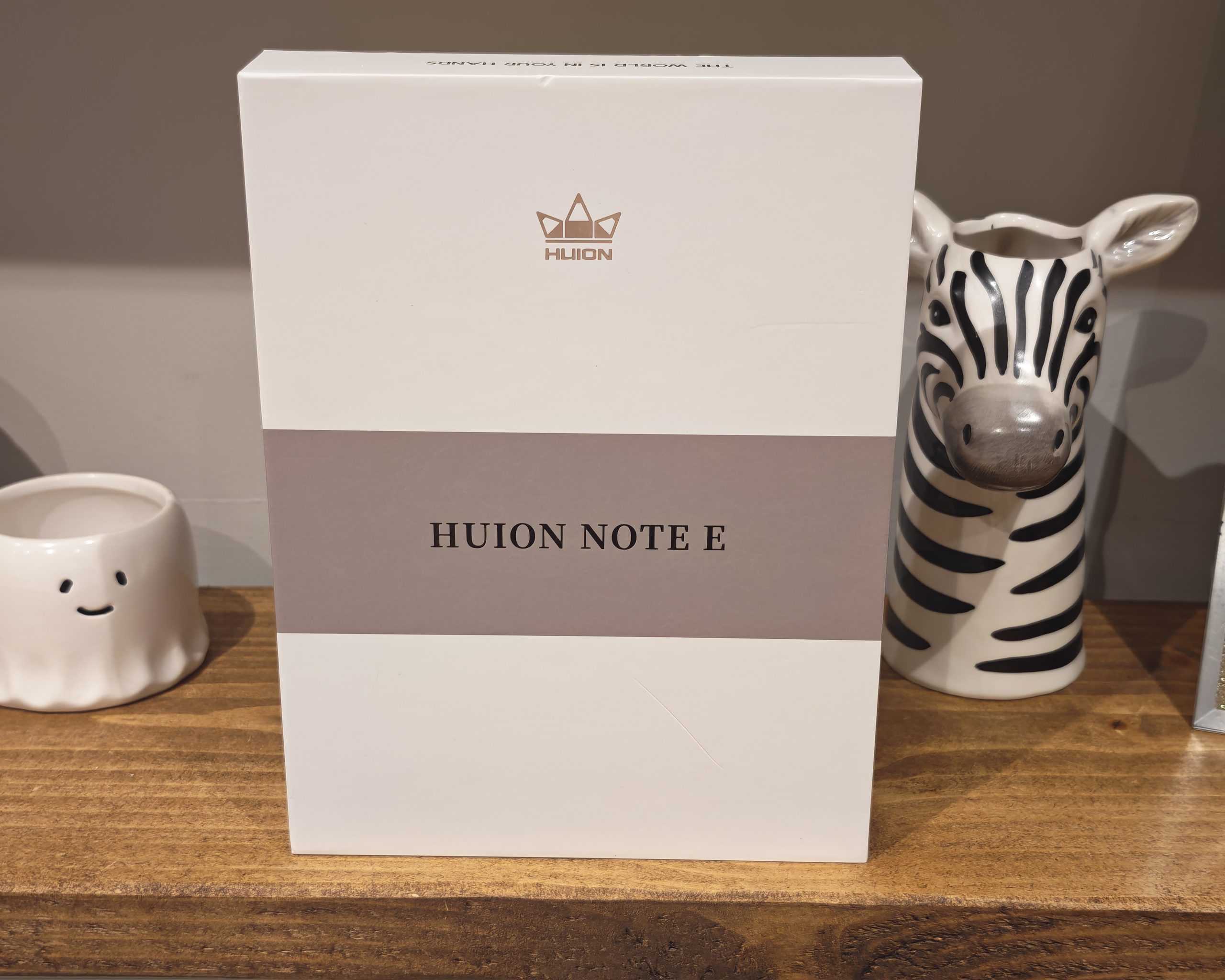
Huion Note E Notebook / Android Tablet Review – Affordable e-paper-like tablet
I have reviewed several tablets this year that are either e-ink tablets or designed to replicate the e-ink/e-paper display.
The iFLYTEK AINOTE Air 2 and AINote 2 were proper e-ink tablets which were also powered with on-device AI for voice transcription. They are both excellent tablets for what they do best, taking notes and transcribing audio.
The problem with e-ink tablets is that the UI is sluggish due to the refresh rates, and doing other tablet things with them is not great.
I then reviewed the TCL Note A1 NXTPAPER which aimed to give the best of both worlds. The matte NXTPAPER display is much easier on the eyes for reading, and writing with a stylus was reasonably good, albeit not as natural feeling as on an e-ink display. It couldn’t compete with e-ink for either reading or writing, but it was much more powerful and the LCD display allowed it to function as a proper tablet, making it more versatile.
At £479, it was not cheap, though.
The Huion Note E is a similar concept to the TCL. It is a normal Android tablet with a matte display and a customised UI geared towards note taking and productivity.
However, this is more affordable at £299.
Huion is better known for its drawing tablets and pen displays than for consumer tablets, and that heritage shows here. Rather than using a USI stylus like its Kamvas Slate tablets, the Note E uses Huion’s own PenTech 3.0 battery-free EMR pen, the same technology found in its pen displays. It sits alongside the Huion Ink, a 10.3-inch E Ink tablet, and the original Huion Note paper-based smart notebook in the company’s note-taking range.
So, is it a viable e-ink alternative? And can it compete with the TCL Note A1 NXTPAPER?
Specification
| Specification | Huion Note E |
|---|---|
| Model | X50 |
| Colour | Black |
| Operating system | Android 15 |
| Processor | MediaTek Helio G99 |
| RAM | 6 GB |
| Storage | 128 GB |
| Display | 8.4-inch IPS, 60 Hz |
| Working area | 180.3 x 112.7 mm |
| Resolution | 1920 x 1200 (16:10), FHD+ |
| Pixel density | 270 PPI |
| Colour gamut volume | 99% sRGB |
| Display colours | 16.7 million (8-bit) |
| Viewing angle | 170° |
| Response time | 30 ms (typical) |
| Brightness | 300 nits (typical) |
| Contrast ratio | 1000:1 |
| Display surface | Anti-glare etched glass |
| Touch input | In-cell 10-point touch |
| Pen technology | PenTech 3.0 battery-free EMR |
| Included digital pen | PW510 |
| Pressure sensitivity | 8,192 levels |
| Tilt recognition | Supported |
| Rear camera | 8 MP |
| Speaker | Single speaker |
| Microphones | Dual microphones |
| Sensors | G-sensor, ambient light sensor, Hall sensor |
| Wi-Fi | 802.11a/b/g/n/ac/ax |
| Bluetooth | 5.2 |
| Battery capacity | 4,500 mAh |
| Listed output voltage/current | 5 V / 1 A; 9 V / 2 A |
| Charging time | Approximately 2 hours |
| Battery life | Approximately 6.5 hours at 50% brightness |
| USB connection | USB-C (USB 2.0) |
| Physical controls | Power button |
| Dimensions | 203 x 143 x 7.4 mm |
| Net weight | 348 g |
Design
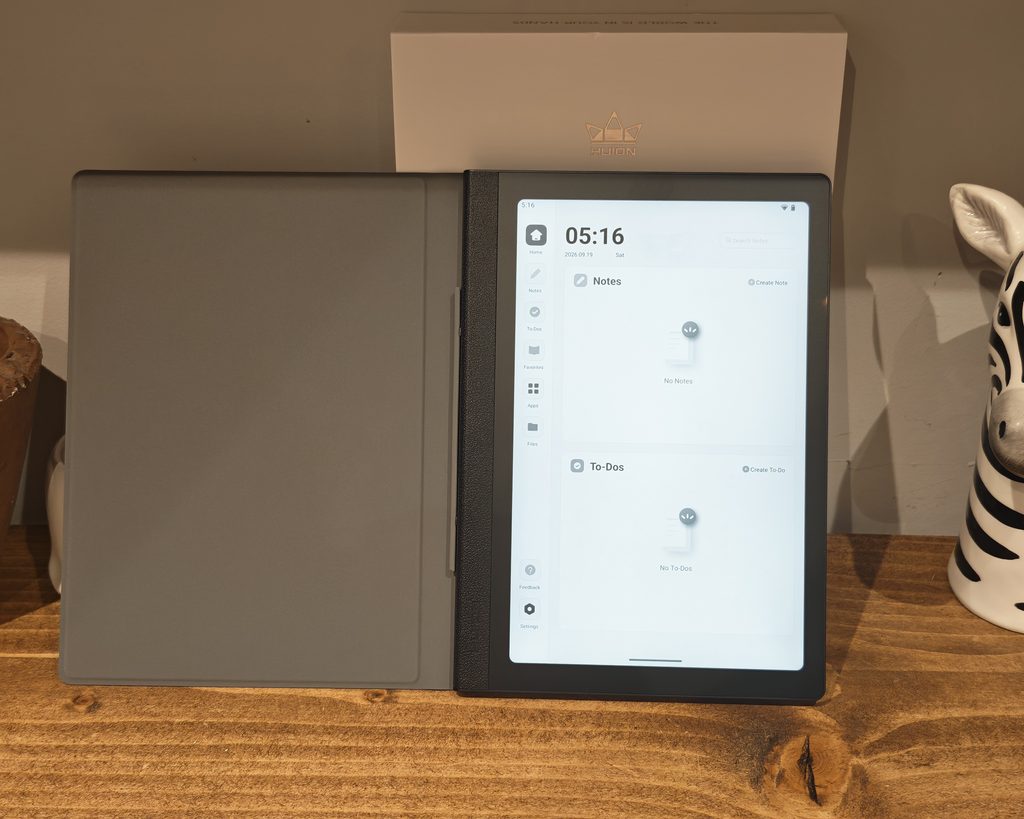
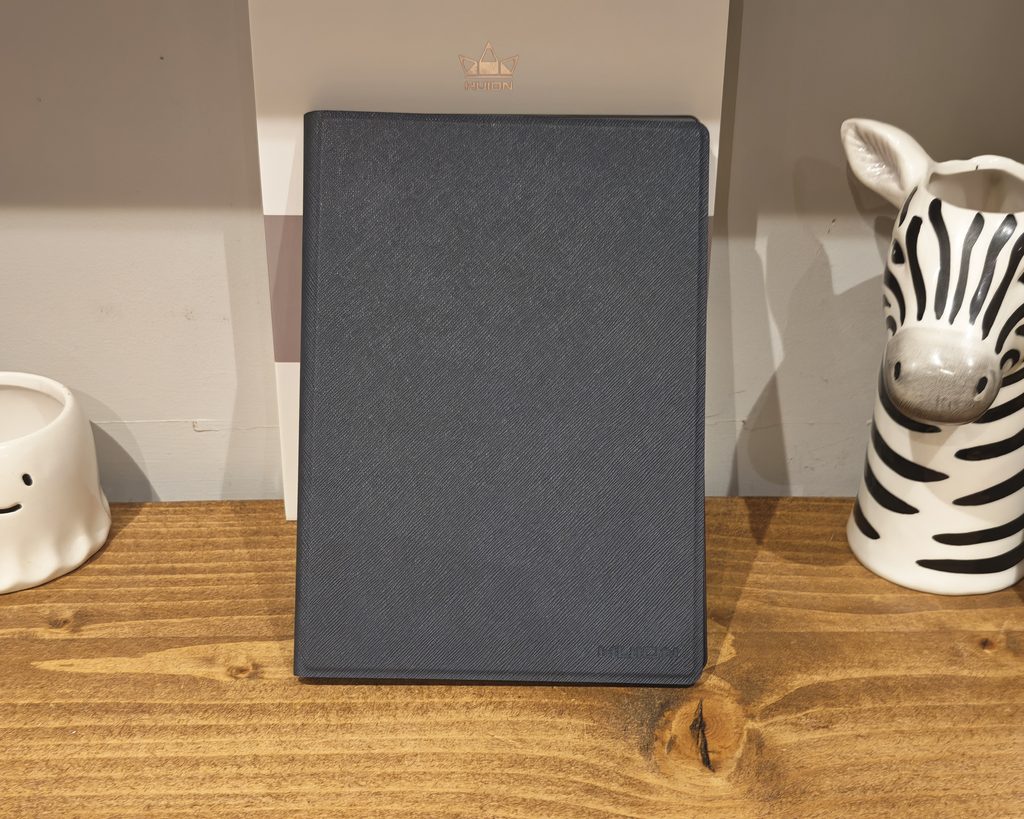
The Note E is roughly the size of a hardback book, and it is supplied in a PU leather folio case that makes it look and feel more like a notebook than a tablet. The case has a textured finish with a subtle Huion logo in the corner, and it supports auto wake and sleep via the Hall sensor.
The case is not magnetic, which is likely because magnets can interfere with EMR pens. Instead, the tablet clips in using two hooks that slot into holes on the side of the tablet. It is secure, but getting it in and out is more fiddly than a typical magnetic folio. The case also has no fold or stand function, so you cannot prop the tablet up for watching video. The pen attaches to the side of the case and is held in place by a small elastic flap, and I found it stayed put well.
The tablet itself is 7.4 mm thick and weighs 348 g, with a metal-feeling matte back that is prone to picking up fingerprints. The bezels are fairly chunky, especially on the left side, which has a textured spine that makes it comfortable to hold like a book. It is a little wider than the likes of the iPad mini, so one-handed use is less comfortable once the case is on.
There is a single power button with an integrated fingerprint scanner, which works quickly and reliably. There are no volume buttons at all, so volume has to be adjusted via the on-screen controls, which is an odd omission. There is a USB-C port (USB 2.0 speeds), a single speaker that sounds rather hollow, and an 8 MP rear camera with no flash. There is no front camera, so this is not a device for video calls.
In the box, you get the PW510 pen, the folio case, a USB-C to USB-C cable, 10 replacement nibs, a nib remover and a quick start guide. There is no charger included.
Display
Much like the TCL Note A1 NXTPAPER, the display is the main selling point here, and it is designed to provide a paper-like viewing and writing experience. Huion does this with a matte, anti-glare etched glass surface. It has a softer touch than a glossy LCD display, and it diffuses the light and cuts reflections significantly, which makes it much easier on the eyes for reading. The trade-off is that colours look a little muted compared to a glossy tablet, but that is to be expected with any matte screen.
The panel is an 8.4-inch IPS LCD with a 1920 x 1200 resolution, which works out at 270 PPI. That is sharp enough that text looks crisp at normal reading distances, and I did not notice any pixelation. Huion quotes 99% sRGB coverage, and colours are reasonably accurate for an LCD of this price, even if the matte etched glass takes the edge off saturation and contrast compared to a glossy panel.
The display is fully laminated, so there is no visible gap between the glass and the image beneath. This helps with writing, as the line appears directly under the pen tip rather than slightly offset.
The anti-glare treatment is effective. Reflections are diffused rather than mirrored, and you can still see what is on the screen when it is facing a window. Unlike some matte screen protectors, it does not wash the whole image out or add noticeable sparkle or grain.
The main limitation is brightness. At a typical 300 nits, it is fine indoors, but it struggles outdoors or in very bright rooms, and there is visible IPS glow and some dimming when viewed at an angle. The refresh rate is also limited to 60 Hz, which is normal at this price but means scrolling is not as fluid as on more expensive tablets.
Huion also highlights hardware-level blue light reduction, which cuts some of the harsher blue wavelengths at the panel level rather than relying purely on a software filter.
Reading Mode
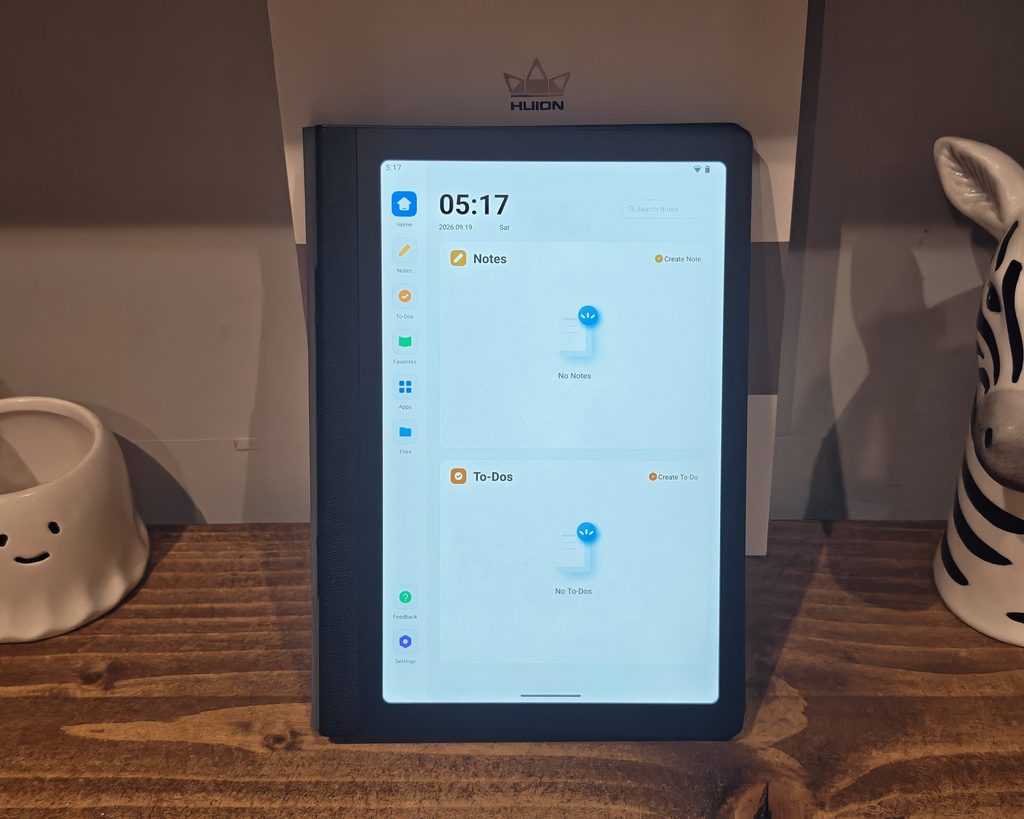
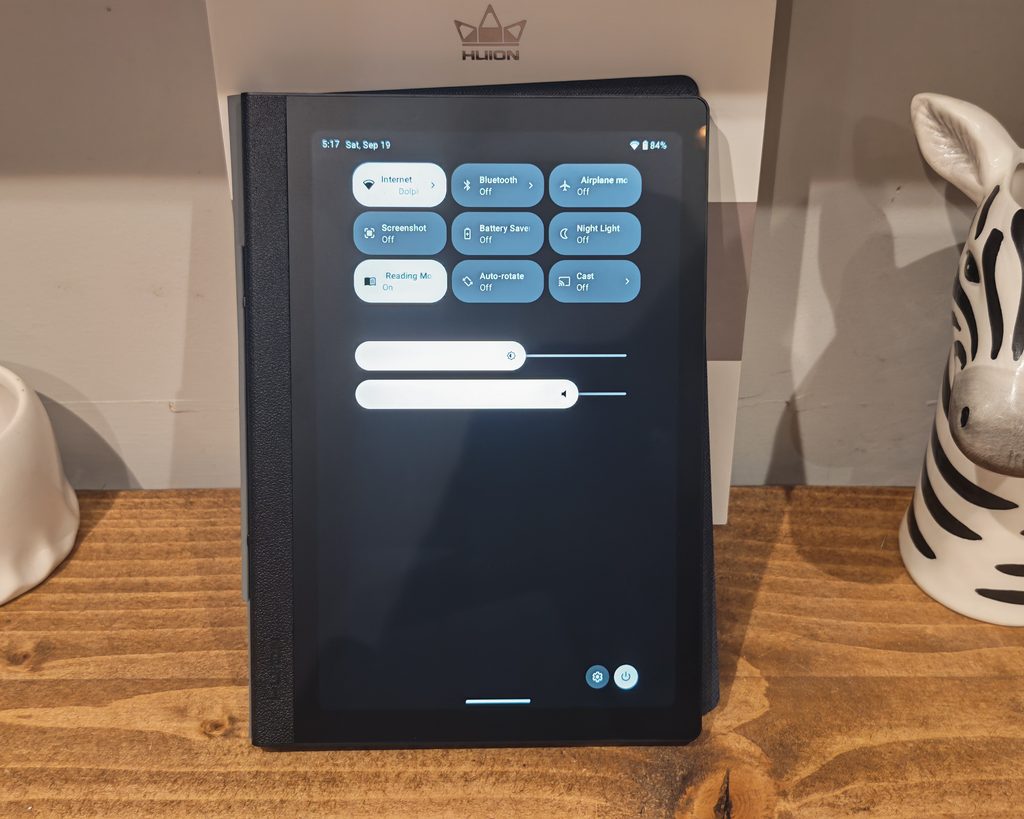
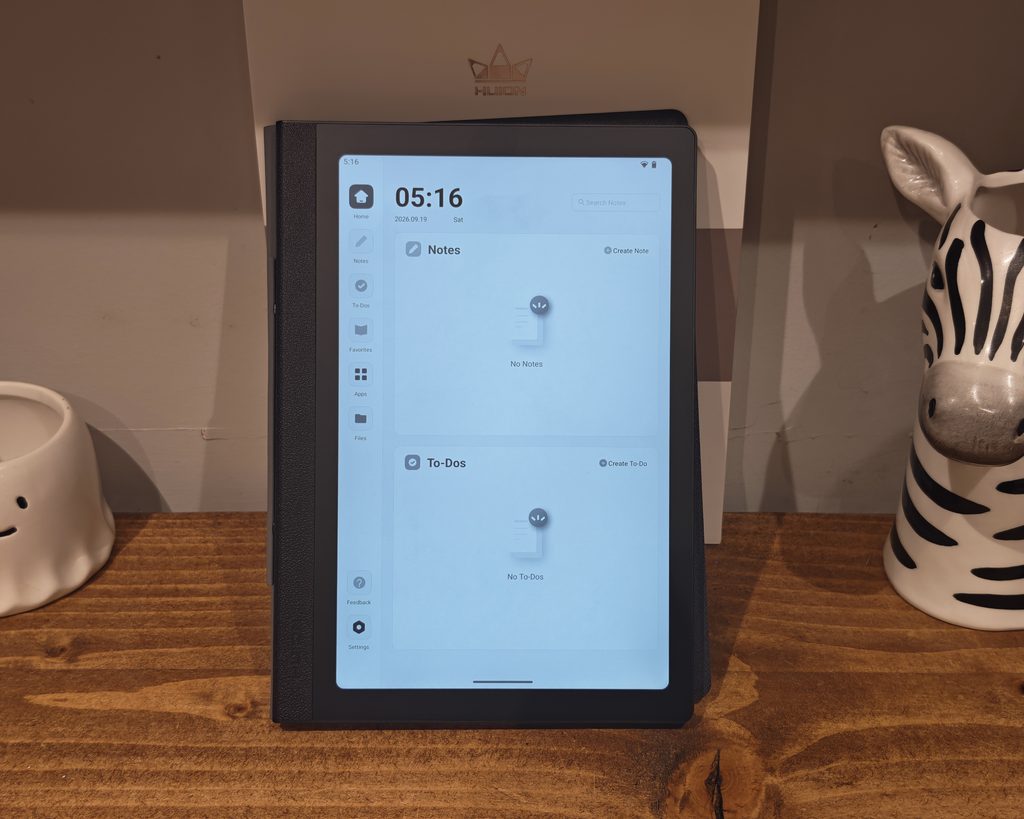
Out of the box, the Note E does not give you a particularly e-ink-like experience for reading. The default settings are far too bright, and it simply looks like a matte tablet.
However, there is a Reading Mode toggle in the Android quick settings drop-down, which switches the display to greyscale. With this enabled and the brightness turned all the way down, I found it produced a pleasant reading experience, and I would be comfortable reading a book on it throughout the day. As it sits in the quick settings, it is easy to switch on and off as needed. The 8.4-inch size works well for novels and text-heavy documents in portrait, and web pages generally load in their narrower tablet layout. It is less suited to comics or magazines, where pages end up quite small and you will be zooming in and out frequently.
The key difference compared to e-ink is that this is still a backlit LCD. Even with the brightness low and greyscale enabled, it does not have the reflective, front-lit quality of an e-ink screen, and it is not as comfortable in a dark room. As I am a terrible sleeper, I would still opt for an e-ink tablet for reading at night.
Stylus & Writing
The writing experience is a bit of a weak spot. As you might expect with an LCD tablet, the writing feel is not great. The matte display makes it a little better than a typical glossy Android tablet, but it is nowhere near an e-ink tablet, and I would say it is behind the TCL Note A1 NXTPAPER too.
The distinction here is between how the pen feels and how the pen performs. In terms of feel, the etched glass is smoother and more slippery than I would like. It lacks the slight friction you get from an e-ink tablet or a good paper-like screen protector, and the result is closer to writing on a matte tablet than on paper. The tapping noise is at least dampened, so it does not have the hard click of a pen on glossy glass.
In terms of performance, the PW510 is very good. It uses Huion’s PenTech 3.0 EMR technology with 8,192 levels of pressure, and because it is EMR, it needs no battery and never needs charging. Accuracy is excellent, lines appear where you expect them to, palm rejection is reliable, and pressure transitions are smooth. It is a noticeably better pen than the USI styluses bundled with many budget Android tablets, and it is closer in behaviour to Wacom EMR pens than to capacitive alternatives.
There are some limitations. Huion quotes a 30 ms response time, and there is a small amount of visible latency with the line trailing the pen tip, although it never affected the accuracy of my handwriting. The pen has an eraser on the back, which is useful, but there is no side button. Tilt is supported, but the shape of the pen means the plastic body touches the screen before you reach a steep angle, which limits how useful it is for shading. There is also no system-wide pressure curve adjustment, so you are reliant on individual apps for that.
For drawing, the 8.4-inch screen is on the small side, but the pen quality means it works well as a portable digital sketchbook with apps like Concepts or Sketchbook from the Play Store.
Notes / Handwriting Recognition / Audio Notes
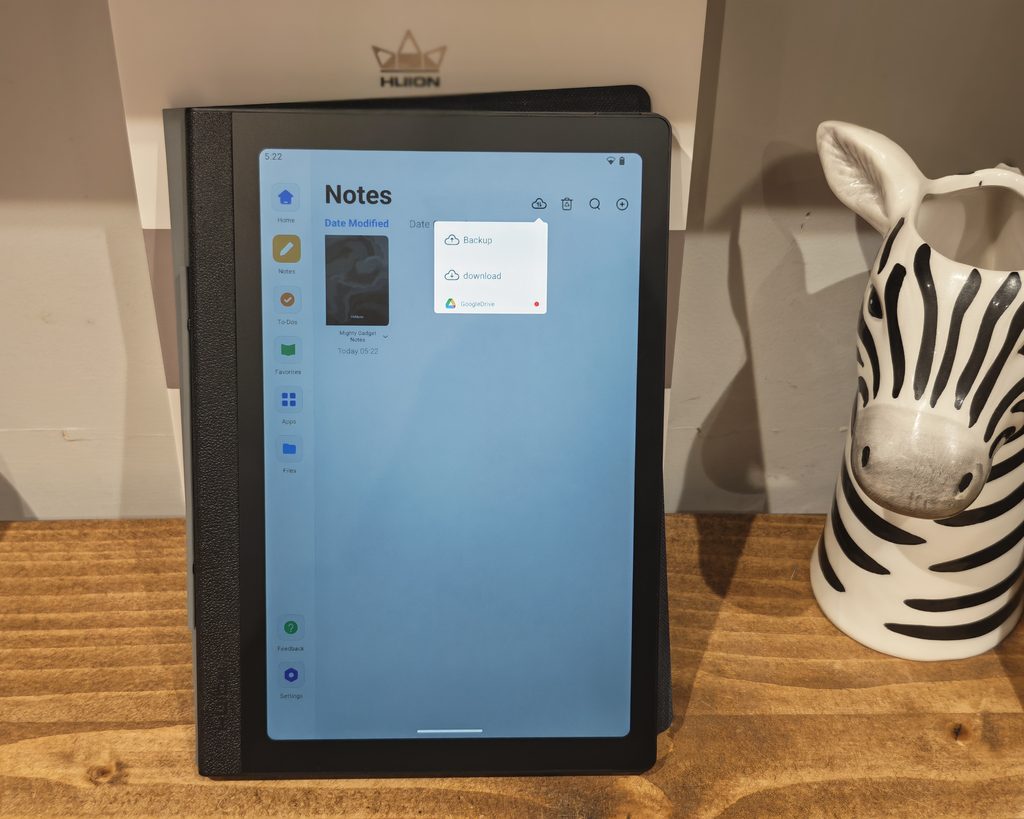
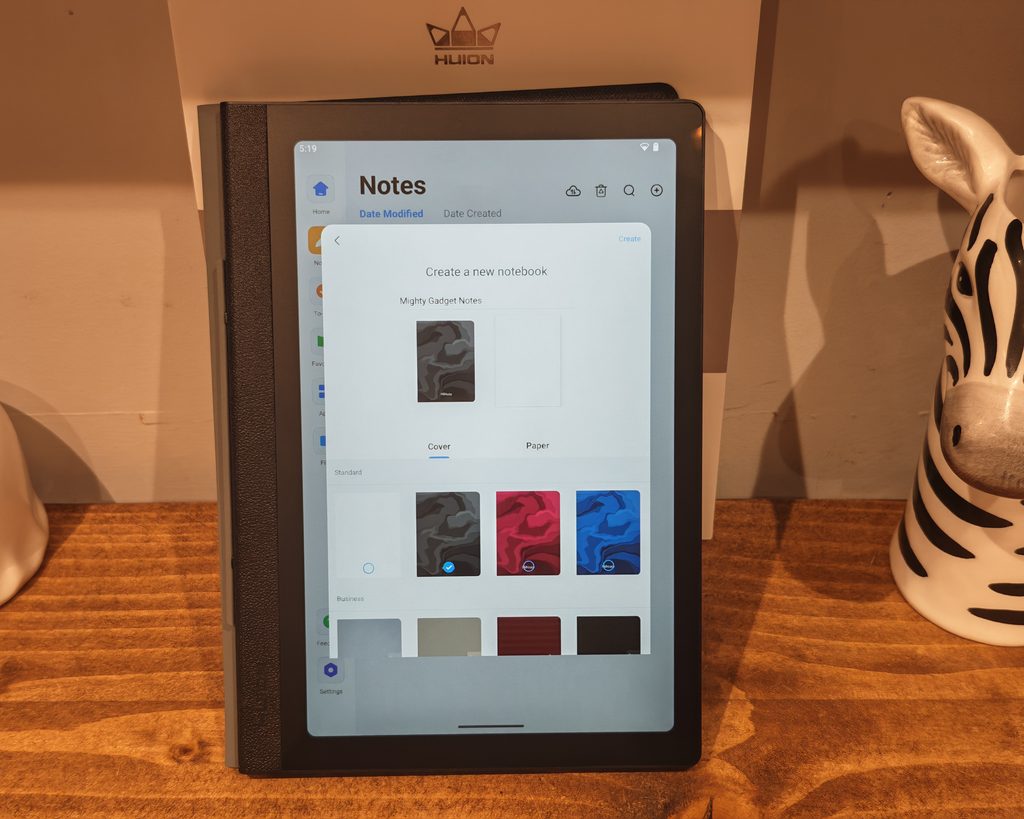
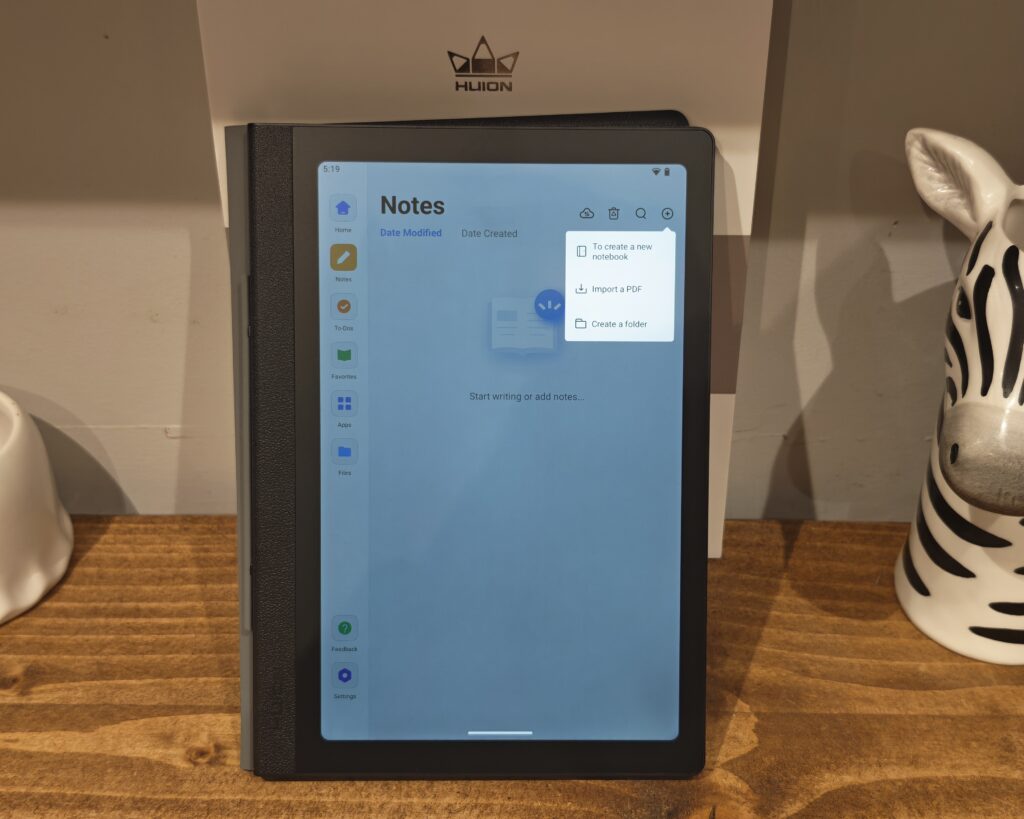
Writing notes is OK. It is nothing like writing on an e-ink tablet, but the stylus works perfectly well and was responsive throughout my testing.
The Huion notes app is built into the custom launcher and is the focal point of the tablet. Creating a notebook lets you choose a name, a cover from a selection of standard and business designs, and a paper template. You cannot upload your own cover images. You can also import PDFs for annotation and organise notebooks into folders.
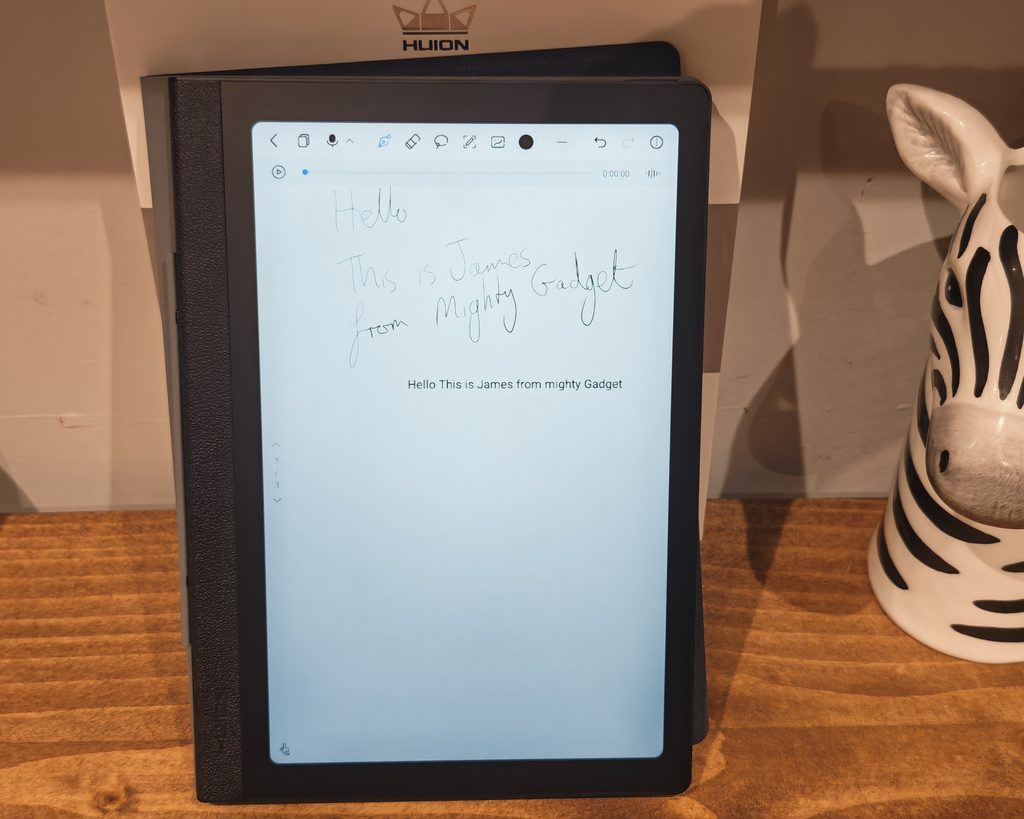
The toolbar includes page management, audio recording, four pen types (fountain pen, ballpoint, highlighter and dashed line), an eraser, a lasso, text insertion, image import, colour and line width selection, and undo and redo. Pressure sensitivity can be adjusted per pen, but beyond that the options are fairly limited. There is no pencil tool, and you cannot change things like the dash spacing on the dashed line pen. It covers the basics, but it is less capable than dedicated apps such as Samsung Notes, Noteshelf or the iFLYTEK note software.
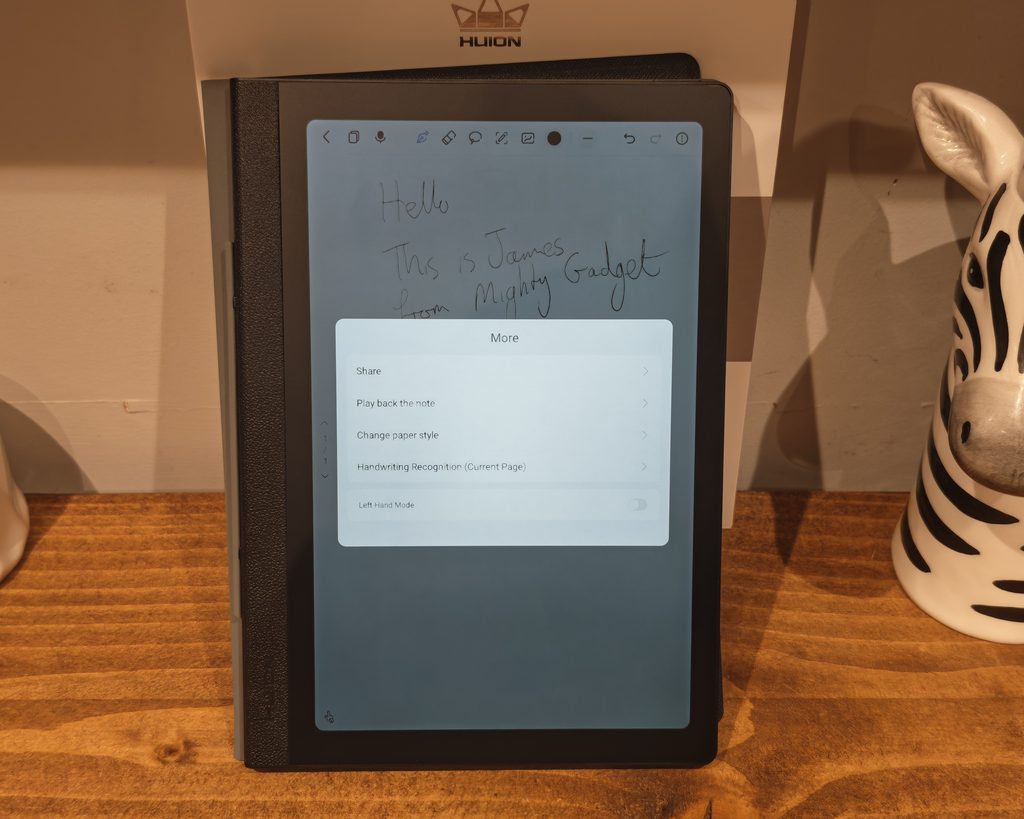
To convert your handwriting, you tap the three dots in the upper right corner and select handwriting recognition. It then inserts the converted text into the note, and you can adjust it as needed. Handwriting recognition was accurate in my testing. My test note of “Hello This is James from Mighty Gadget” was converted correctly apart from the capitalisation of one word, which is a good result given my handwriting. The converted text can then be moved, resized and reformatted. The recognition language defaults to English (US), and there is a long list of other languages available.
The extra menu also lets you share notes, play back how a note was written, change the paper style and toggle a left-hand mode.
There is also a microphone button in the toolbar, allowing you to add audio notes. However, there is no option to transcribe these recordings. For me, as someone with ADHD, this is a bit disappointing. I like to record meetings and transcribe them so I can easily remember what has been said, and the TCL Note A1 NXTPAPER and both iFLYTEK tablets do this natively. The Note E does have access to the Play Store, so there is nothing stopping you installing a transcription app to fill the gap, but it is not integrated into your notes in the same way.
For backups, the notes app connects to Google Drive, OneDrive or Dropbox, which is more flexible than relying on a proprietary cloud service. There is also a cloud service node option in settings, where you can choose between Global and Chinese Mainland.
I did find saving could be slow at times, and there are a few quirks, such as the notes app not always appearing in the recent apps switcher. These feel like first-generation software issues that could be improved with updates.
To-Do
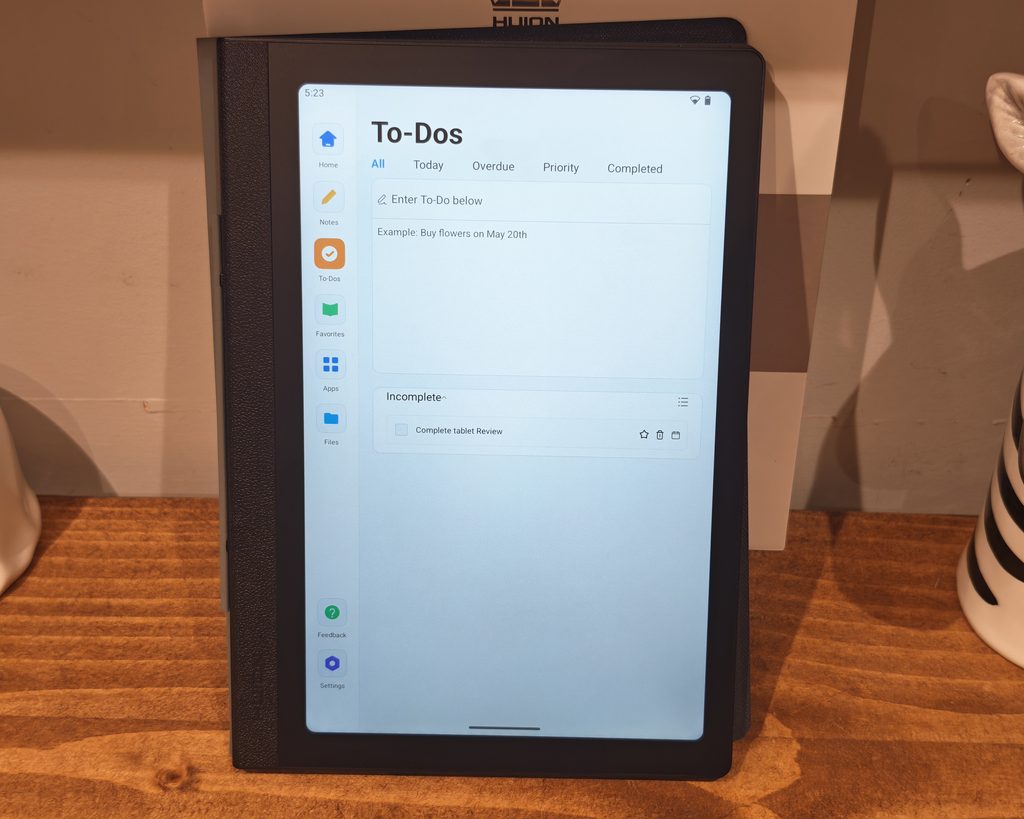
The To-Do functionality is interesting as it only works with the stylus, and I could not create new items by typing. However, it recognises your handwriting as you go, and I found it quite accurate, even with my terrible writing.
To-dos appear on the home screen alongside your recent notes, and they can be filtered by All, Today, Overdue, Priority and Completed. Each task can be starred, deleted or assigned a date. It is a simple system, but it works well for quick lists, and handwriting straight into a to-do list feels natural on a device like this.
The lack of keyboard input is a strange decision, though, and there is no sync with services like Google Tasks or Microsoft To Do, so it is a self-contained list on the tablet.
Apps
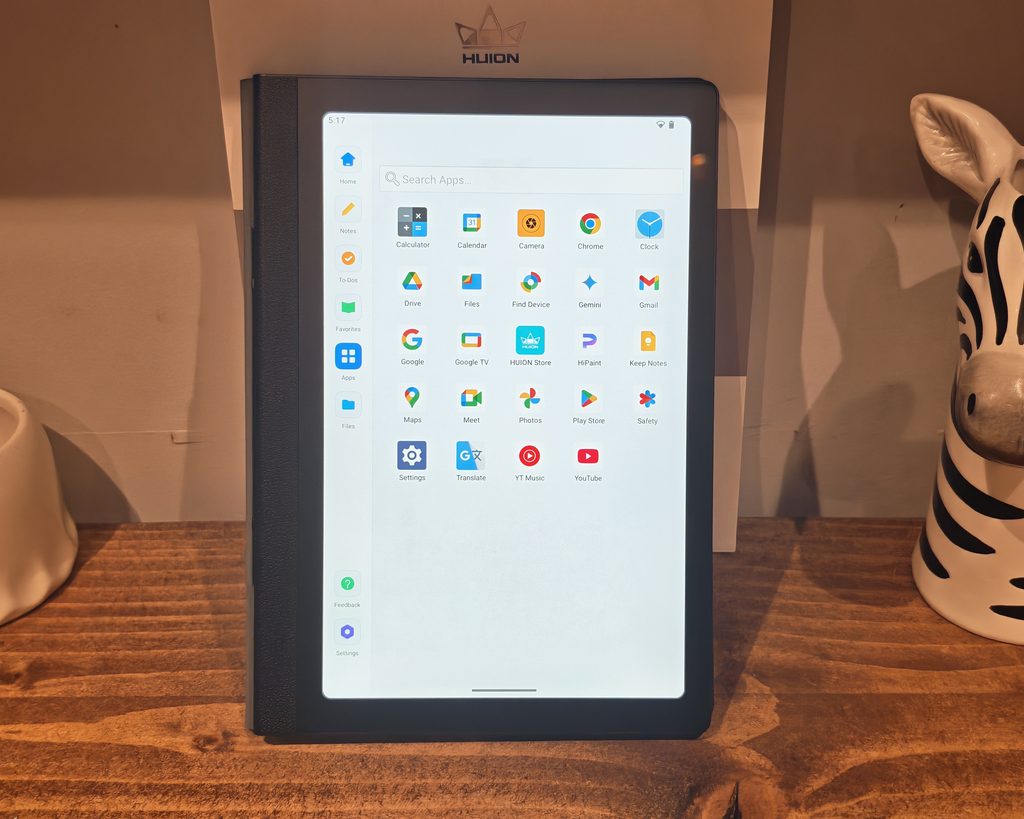
The Note E runs Android 15 with a custom Huion launcher. The side menu provides quick access to Home, Notes, To-Dos, Favourites, Apps and Files, with Feedback and Settings at the bottom.
This launcher is where the Note E differs most from a normal Android tablet, and it is a mixed bag. It keeps the focus on note taking, which suits the purpose of the device, but app management is very basic. There are no folders, apps cannot be grouped or sorted alphabetically, and uninstalling an app requires going into the Android app info page. The search bar is the quickest way to find apps once you have a few installed. The Huion settings page is also very sparse, and you need to go into the full Android settings app for anything beyond the handwriting language.
Out of the box, you get a sensible selection of Google apps, including Chrome, Gmail, Drive, Keep, Calendar, Maps, Photos, YouTube, Gemini and the Play Store, plus the Huion Store and HiPaint drawing app. Depending on the unit, you may need to register the tablet with Google using the Google device registration code in settings before the Play Store works properly, but Huion includes a card with instructions and it only takes a couple of minutes.
The Play Store access is the key advantage over e-ink tablets. You can install Kindle, OneNote, Obsidian, MyScript Notes, Concepts, Sketchbook, streaming apps and transcription apps without any of the ghosting or slow refresh that comes with e-ink. Some apps, such as Notein and Flexcil, may not appear in the Play Store for this device, so it is worth checking your preferred apps are available.
Huion has not committed to a specific number of Android version or security updates, which is something to consider if you plan to keep the tablet for several years.
Performance and Benchmarks
The MediaTek Helio G99 is a familiar chip in budget tablets. It uses two Cortex-A76 cores and six Cortex-A55 cores on a 6 nm process, with a Mali-G57 MC2 GPU. It is an older chip now, and in Geekbench 6 it typically scores in the region of 700 for single-core and around 2,000 for multi-core, which places it well behind mid-range tablets but comfortably ahead of the processors used in most e-ink tablets.
Paired with 6 GB of RAM, the Note E is smooth for general use. Navigating the launcher, writing notes, browsing the web and streaming video all work without any significant lag, and the pen remains responsive in drawing apps. Where you will notice the limitations is with heavier apps, larger PDFs and multitasking, and gaming performance is limited to lighter titles or reduced settings.
Compared to an e-ink tablet, the difference is significant. Scrolling, page turning and app switching are instant rather than waiting for a screen refresh, which is the main reason to choose a device like this over an e-ink alternative.
Storage is 128 GB, but there is no microSD card slot, so you cannot expand it. The USB-C port is also limited to USB 2.0 speeds, so transferring large files is slow.
Battery Life
The Note E has a 4,500 mAh battery, which is on the small side for a tablet, even an 8.4-inch one. Huion quotes approximately 6.5 hours at 50% brightness.
That is where the LCD approach has its biggest drawback compared to e-ink. E-ink tablets like the iFLYTEK AINOTE Air 2 can last for weeks with moderate use, whereas the Note E needs charging like a normal tablet. For a full working day of note taking and reading with the brightness kept low, it should be fine, but heavier use with video or higher brightness will see it drop faster, and you will want to charge it every day or two.
Charging is supported at up to 9 V / 2 A (18 W), with Huion quoting around 2 hours for a full charge. There is no charger in the box, so you will need to use your own USB-C charger.
Price and Alternative Options
The Huion Note E is available from Huion and is listed at £329 RRP discounted to £299.
Huion has their own E-Ink tablet with the Huion Ink priced at £279.
The TCL Note A1 NXTPAPER is the logical alternative and a superior product, especially due to the voice transcription, but this costs £479.
The XP-Pen Magic Notepad is another close competitor. It uses the same Helio G99 chip, an EMR pen and a matte TCL NXTPAPER display, but with a larger screen, and it is available for around £280. For note taking, the larger display and slightly more textured writing feel make it the stronger choice for many people, although it lacks a fingerprint scanner and the Huion is the more portable device.
If you would prefer a proper e-ink tablet, the iFLYTEK AINOTE Air 2 costs £386 and the iFLYTEK AINote 2 is £521, with both offering native voice transcription. The reMarkable 2 with Marker Plus is £402, the Penstar eNote 2 is £326, and the BOOX Tablet Go Color 7 Gen II is £270.
Or, you can pick up normal Android tablets for less. The Lenovo Idea Tab, which includes a stylus, is available for just £189. It has a glossy display and a less accurate pen, but it is a more capable general-purpose tablet for the money.
Overall
I think if you have realistic expectations of this tablet, it is good.
I like the form factor, being about the size of a book, and the matte display in reading mode with the brightness turned all the way down does a good job of replicating an e-ink display for reading (though I probably wouldn’t use it before bed).
It is also priced attractively, undercutting many e-ink tablets and a lot cheaper than the TCL. And, just like the TCL, it is more powerful than e-ink tablets, making it more versatile for things like media.
The pen is the standout feature. Huion’s EMR technology gives it accurate, predictable pressure response that is better than most Android tablets at this price, and it never needs charging. The writing feel is where it falls short. The etched glass is too slippery to feel like paper, and the writing experience is nowhere near as good as e-ink and a bit behind the TCL. It is also disappointing that there is no native voice transcription in the note-taking app, though you could install an app from the Play Store to achieve this.
There is also nothing else other than notes and to-dos that is natively built into it, so any additional functionality needs to come from the Play Store. The launcher could do with better app management, and the lack of volume buttons and a non-magnetic case are minor frustrations.
Overall, the Huion Note E is a sensible choice if you want a compact, note-focused tablet with a good pen and full Android app support. If your priority is the best possible writing feel or long battery life, e-ink remains the better option, and if you want native AI transcription, the TCL Note A1 NXTPAPER or iFLYTEK tablets are worth the extra money.
Huion Note E Notebook / Android Tablet Review
-
Overall - 75%75%
Summary
I found the Huion Note E a useful compromise between a digital notebook and a compact Android tablet. Its matte display is comfortable for daytime reading, while the accurate, battery-free pen and Play Store access make it versatile for notes and everyday use. At £299, it is reasonably priced, although the slippery writing surface, basic software and lack of integrated voice transcription limit its appeal as a dedicated notebook. It suits anyone prioritising portability and app flexibility over the writing feel and battery life of e-ink.
Pros
- Accurate pen needs no charging.
- Matte display reduces reflections effectively.
- Compact size suits everyday carrying.
- Play Store broadens app choice.
Cons
- Writing surface feels too slippery.
- Native voice transcription is absent.
- Battery endurance trails e-ink alternatives.
- Note-taking software feels relatively basic.

I am James, a UK-based tech enthusiast and the Editor and Owner of Mighty Gadget, which I’ve proudly run since 2007. Passionate about all things technology, my expertise spans from computers and networking to mobile, wearables, and smart home devices.
As a fitness fanatic who loves running and cycling, I also have a keen interest in fitness-related technology, and I take every opportunity to cover this niche on my blog. My diverse interests allow me to bring a unique perspective to tech blogging, merging lifestyle, fitness, and the latest tech trends.
In my academic pursuits, I earned a BSc in Information Systems Design from UCLAN, before advancing my learning with a Master’s Degree in Computing.
I’m proud to share that Vuelio has consistently ranked Mighty Gadget as one of the top technology blogs in the UK. With my dedication to technology and drive to share my insights, I aim to continue providing my readers with engaging and informative content.
I work directly with the companies he reviews products for or their chosen PR agency.
For Social Media, you can find me on: