BenQ Creative Pro PD2770U 4K Monitor Review – A professional monitor that can calibrate itself
It has been a while since I reviewed a monitor that is not a portable monitor, and even longer since I reviewed any professional-grade monitor.
I am not a creative person myself, so I don’t have much use for professional colour accurate monitors, but I do work in IT support and ran a web design company for several years, so I have some experience with them and appreciate the importance.
The BenQ Creative Pro PD2770U is a 27″ 4K colour management monitor that has a unique ability to calibrate itself.
A built-in calibrator that sits flush in the bezel. On a schedule you set, it swings down, reads colour directly off the panel, updates the internal LUT, and retracts. There is no external device, no software, no manual intervention. For lean teams without a dedicated colourist, that’s a meaningful shift in how colour accuracy gets maintained day to day. With this feature, it’s ideal for small graphic design teams.

- ACCURATE & RELIABLE COLOR MANAGEMENT: 99% Adobe RGB, 99% DCI-P3, and 100% Rec.709 coverage with Delta E ≤ 1.5 for accurate colors trusted by creative professionals.
- HARDWARE CALIBRATION & BUILT-IN CALIBRATOR: Maintain long-term color consistency with the hardware calibration, built-in calibrator, and light-adaptive, auto-scheduled recalibration.
- UNIFORMITY CALIBRATION: Corner-to-corner visual uniformity fine-tuned to human visual perception for reliable, natural viewing across the entire screen.
- ERGONOMIC DESIGN & CREATOR-READY FEATURES: Magnetic shading hood, wireless Hotkey Puck, and adjustable stand support comfort and efficiency for design, video, and color-critical tasks.
- ALL-IN-ONE USB-C & FLEXIBLE CONNECTIVITY: 96W USB-C power delivery, RJ45 LAN, KVM switch, and DisplayPort daisy chain streamline setup and workflow for creative studios.
Specification
Display
| Specification | Detail |
| Screen Size | 27 inches |
| Panel Type | IPS |
| Resolution | 3840 x 2160 (4K UHD) |
| Brightness | 400 nits (typical) |
| Contrast Ratio | 1000:1 |
| Response Time | 5ms (GtG) |
| Refresh Rate | 60Hz |
| HDR Support | HDR10, HLG |
| Viewing Angles | 178 degrees horizontal and vertical |
| Pixel Density | 163 PPI |
| Panel Coating | Nano Matte |
Colour Accuracy
| Specification | Detail |
| Colour Gamut | 100% Rec.709 / 99% Adobe RGB / 99% DCI-P3 |
| Delta E (avg) | <=1.5 |
| Colour Modes | DCI-P3, Adobe RGB, Display P3, Rec.709, sRGB, HDR, CAD/CAM, Animation, Darkroom, DICOM, User |
| Factory Calibration | Yes – individual report included |
| Hardware Calibration | Yes – built-in sensor |
| 3D LUT | 16-bit |
| Certifications | Calman Verified, Pantone Validated, Pantone SkinTone Validated |
| Uniformity Compensation | Yes |
Connectivity
| Specification | Detail |
| HDMI | 2x HDMI 2.0 |
| DisplayPort | 1x DisplayPort 1.4 |
| USB-C | 1x USB-C (96W Power Delivery, DisplayPort Alt Mode, 5Gbps data) |
| USB-A | 2x USB-A 3.2 Gen 1 (5Gbps, 4.5W charging) |
| USB-C Upstream | 1x USB-C 3.2 Gen 1 (data only) |
| Network | RJ45 Ethernet |
| Headphone Jack | Yes |
| KVM Switch | Yes |
| PIP / PBP | Yes |
Ergonomics and Stand
| Specification | Detail |
| Tilt | -5 to +20 degrees |
| Swivel | 15 degrees left and right |
| Height Adjustment | 115mm |
| Pivot (Portrait Mode) | Yes – with Auto Pivot |
| VESA Mount | 100 x 100mm |
Power
| Specification | Detail |
| Power Consumption (typical) | 33W |
| Power Consumption (max) | 200W |
| Sleep Mode Consumption | <0.5W |
| USB-C Power Delivery | 96W |
| Power Supply | Built-in |
| Energy Star | Yes |
Dimensions and Weight
| Specification | Detail |
| Dimensions (H x W x D) | 460.6-575.6 x 614 x 242mm |
| Weight | 8.8kg (9.6kg with shading hood) |
In the Box
| Item | Detail |
| Cables Included | DisplayPort 1.4, USB 3.0, USB-C |
| Accessories | Shading hood (landscape), Hotkey Puck G3, calibration report, cleaning cloth |
| Software | Display Pilot 2, Palette Master Ultimate |
Unboxing and Design
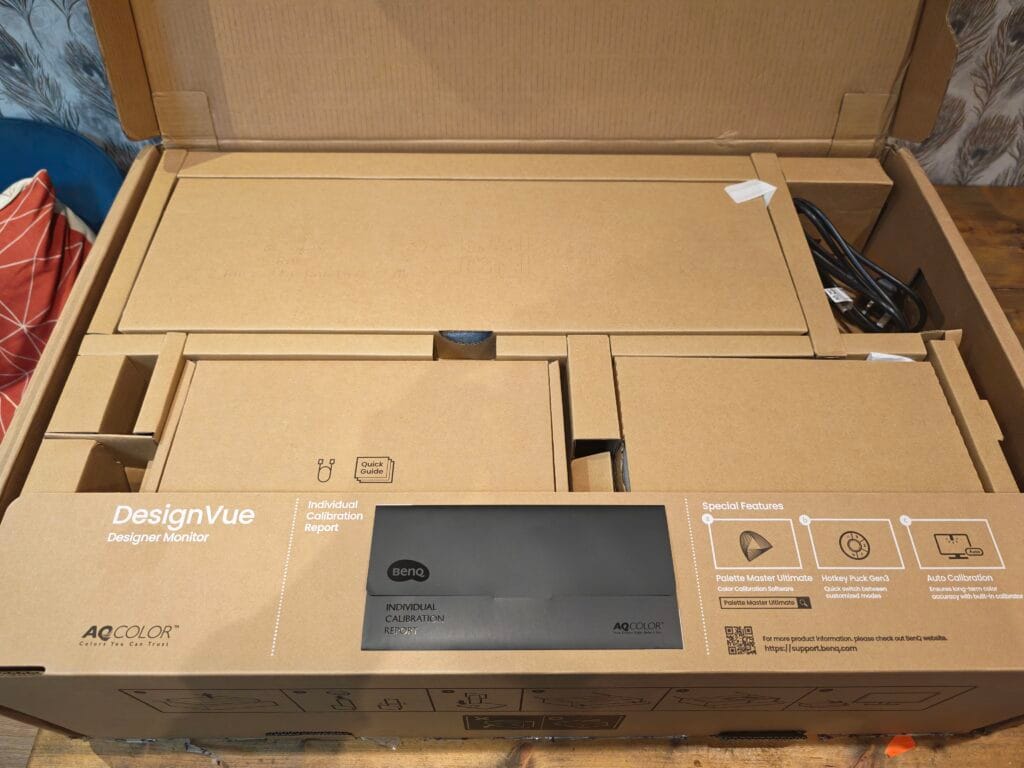
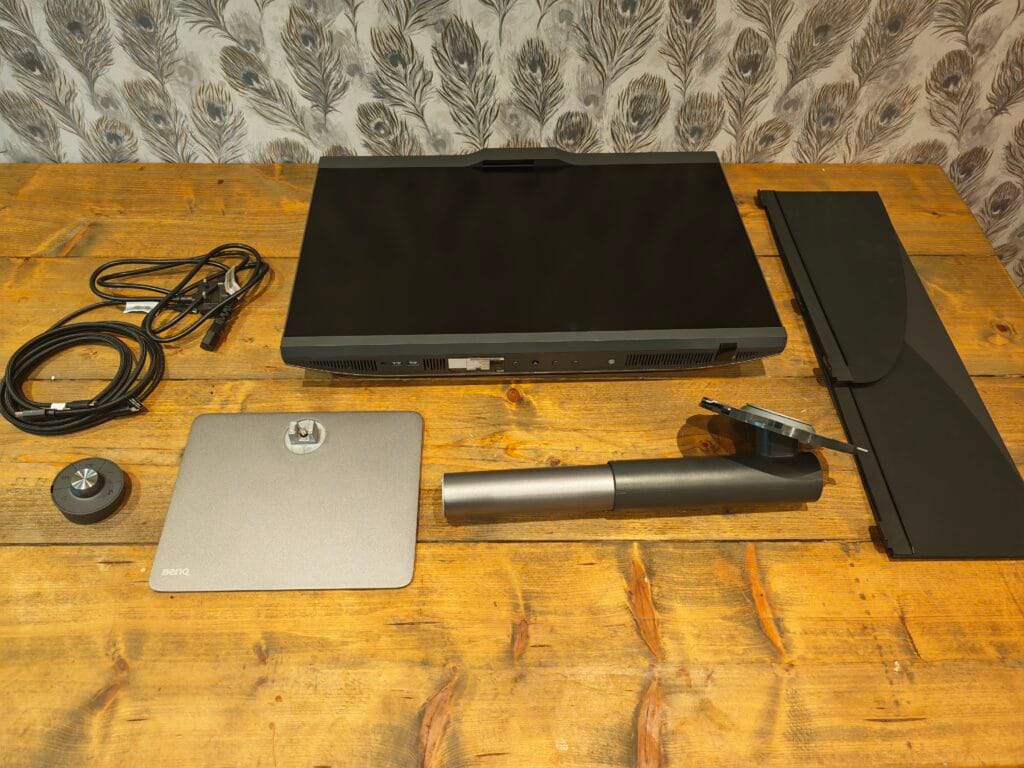
The BenQ Creative Pro PD2770U arrives well packaged, with the monitor, stand, and accessories clearly separated. Assembly is straightforward. The stand attaches via a click mechanism and requires no tools, which is consistent with BenQ’s broader monitor range.
The design follows BenQ’s established professional aesthetic: a matte black plastic chassis, slim bezels on three sides, and a slightly thicker bottom bezel that accommodates some of the monitor’s hardware. Overall dimensions with the stand are 460.6-575.6mm in height, 614mm wide, and 242mm deep. It weighs 8.8kg without the shading hood, rising to 9.6kg with it attached.
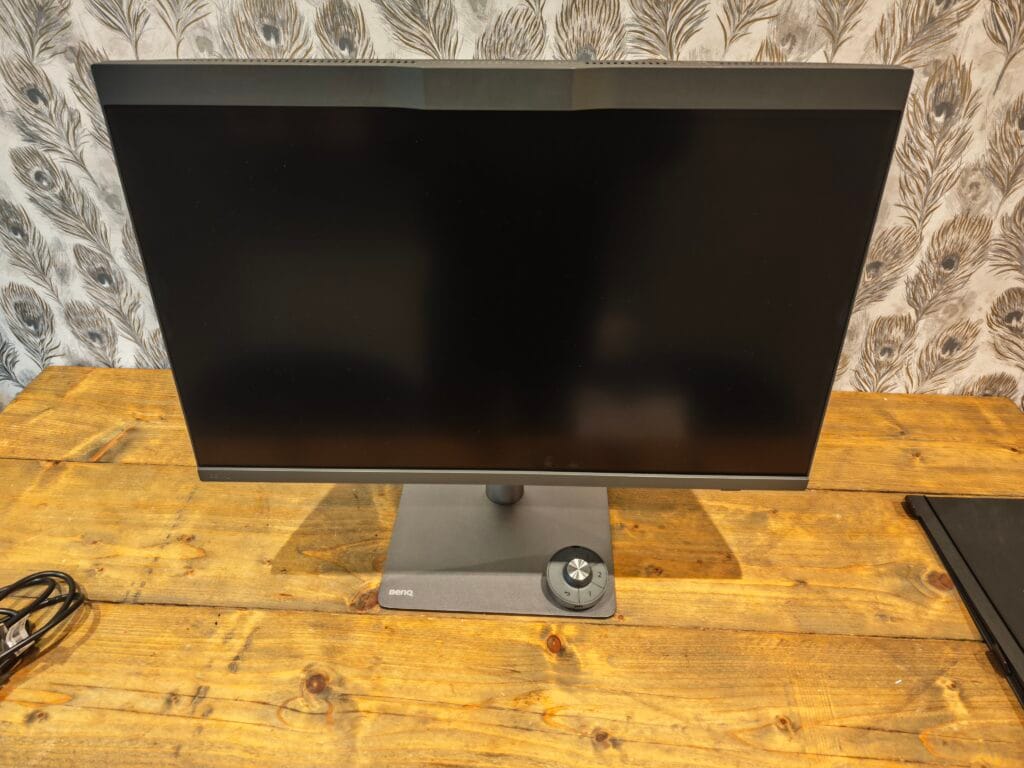
The stand is fully ergonomic, offering 115mm of height adjustment, 15 degrees of swivel in either direction, tilt from -5 to +20 degrees, and full 90-degree pivot into portrait mode with Auto Pivot support. The VESA mounting pattern is a standard 100 x 100mm, so third-party arms are an option if preferred.
One of the more distinctive design elements is the notch at the top of the bezel, which houses the built-in colorimeter. In day-to-day use it sits flush and unobtrusive. During calibration, it swings down automatically, does its work, and retracts. Watching it operate for the first time is genuinely impressive, and the mechanical action feels solid rather than fragile.
The panel coating is what BenQ describes as Nano Matte. It is worth noting that this is not quite as matte as the coating found on BenQ’s SW-series photography monitors. In practice, it sits somewhere between a standard matte and a semi-gloss finish. There is some reflectivity in bright ambient conditions, though the supplied shading hood addresses this well. The reflection rate comes in below 3%, which compares favourably to standard matte panels at around 3.5% and glass panels at over 4%. For critical colour work, the shading hood is worth using consistently.
Ports
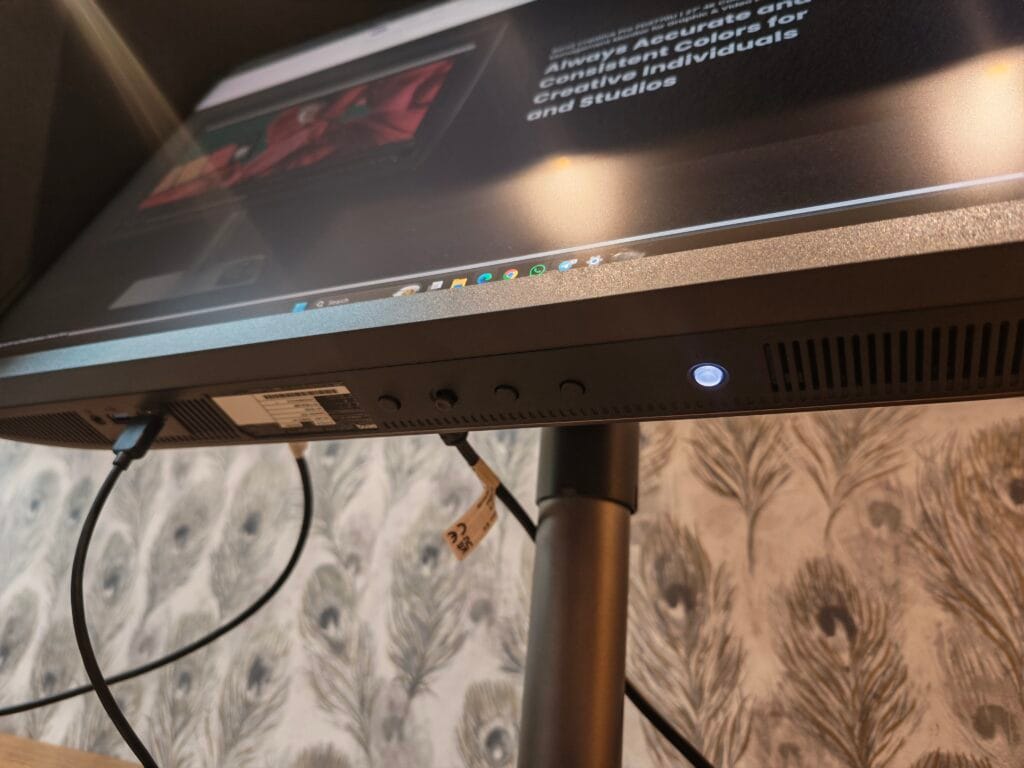
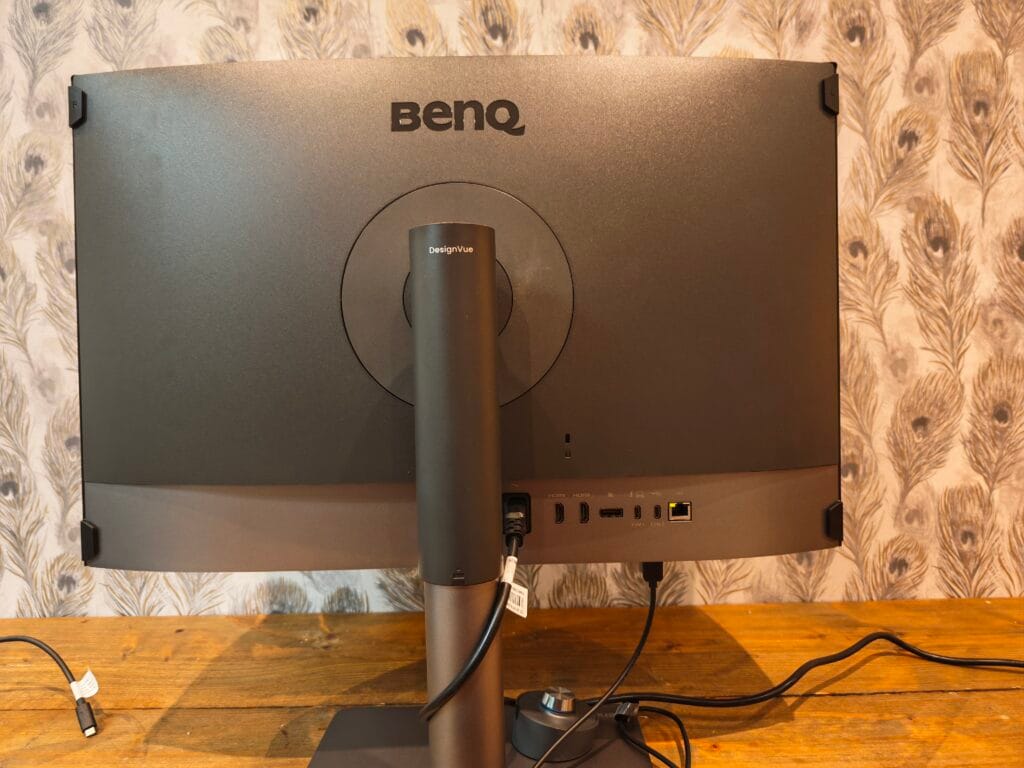
The connectivity on the PD2770U is broad for a monitor in this category. On the rear panel, there are two HDMI 2.0 ports, one DisplayPort 1.4, one USB-C port with 96W Power Delivery and DisplayPort Alt Mode, one USB-C upstream port for data only, and two USB-A 3.2 Gen 1 ports. There is also a 3.5mm headphone jack, and an RJ45 Ethernet port.
The 96W USB-C Power Delivery is practical for anyone running a laptop as their primary machine. A single cable to the monitor handles both display output and laptop charging simultaneously, which keeps desks clean and reduces cable management headaches.
The RJ45 Ethernet port is not standard networking in the traditional sense. It is intended for use with BenQ’s DMS Local management system, which allows IT administrators to control multiple BenQ displays across a studio network from a single PC. Settings, colour modes, and calibration schedules can all be managed centrally. This is a useful feature in a team environment, though it is worth noting that the BenQ management software currently only runs on Windows, so Mac-based studios will not be able to take advantage of this particular feature.
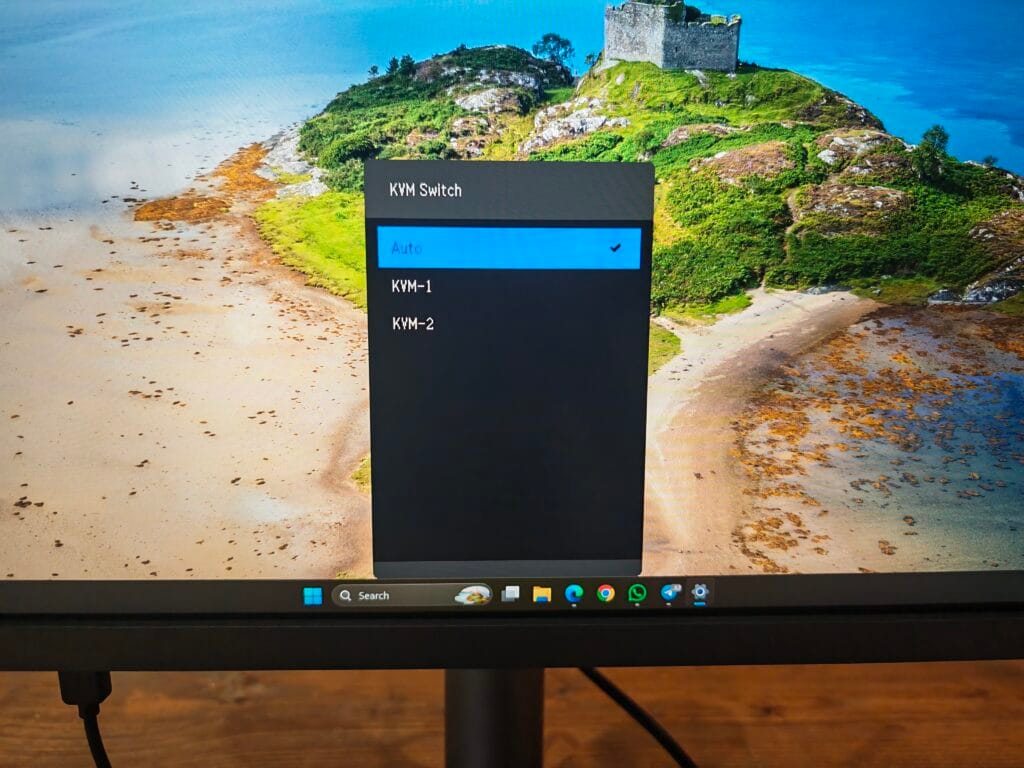
A KVM switch is built in, allowing keyboard, mouse, and other USB peripherals to be shared between two connected computers. This is controlled through the Hotkey Puck G3 or the on-screen menu. It is a practical inclusion for anyone running a dual-machine setup, which is not uncommon in professional creative environments.
PIP (Picture in Picture) and PBP (Picture by Picture) modes are supported. PIP allows a second input to be shown in a floating window in one of the four corners of the screen, with small, medium, or large size options. PBP, which BenQ calls GamutDuo, splits the screen into two halves showing different colour spaces simultaneously. For photographers who want to see how an Adobe RGB image will look when converted to sRGB, this is a useful proofing tool.
Calibration and Set Up
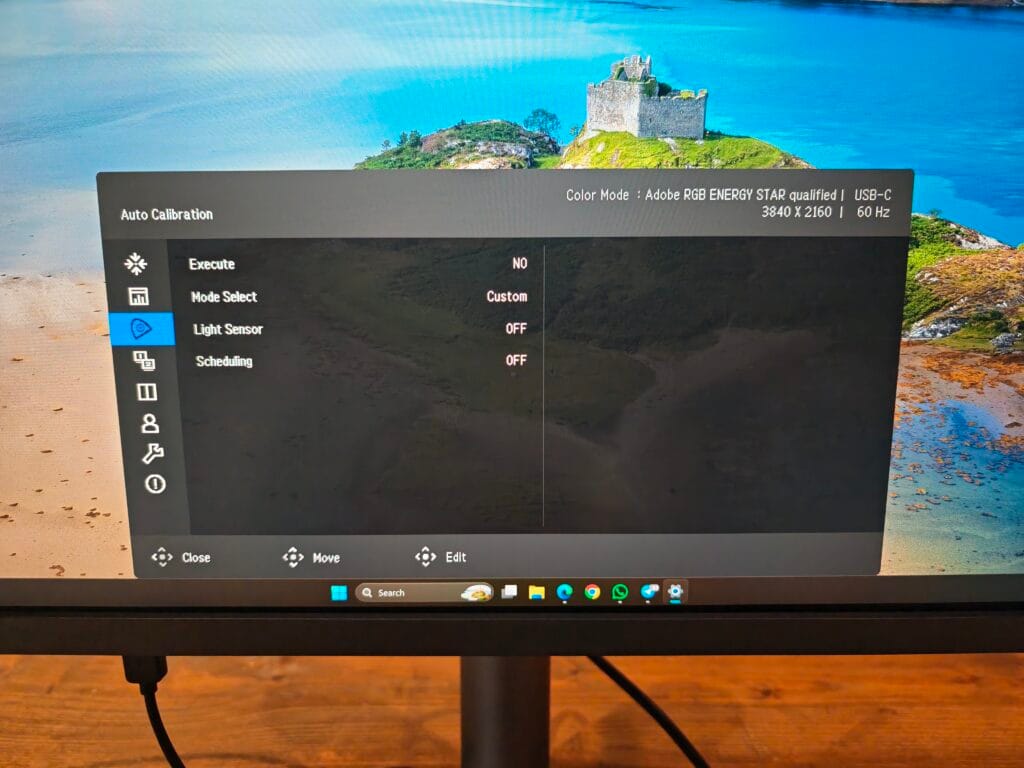
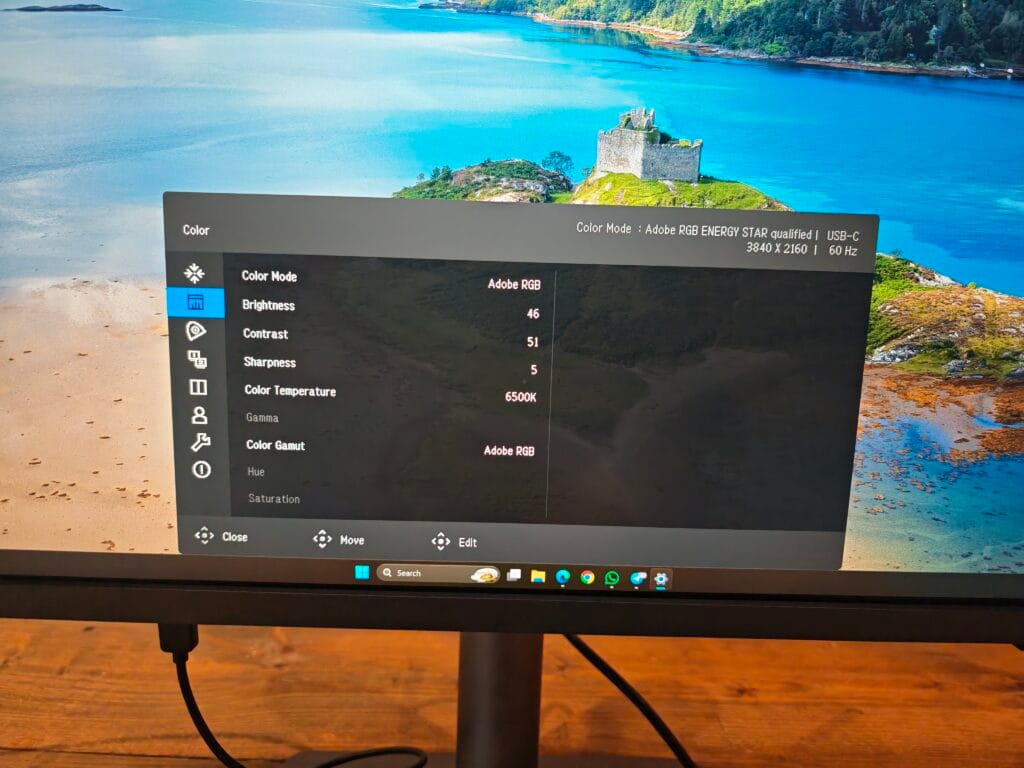
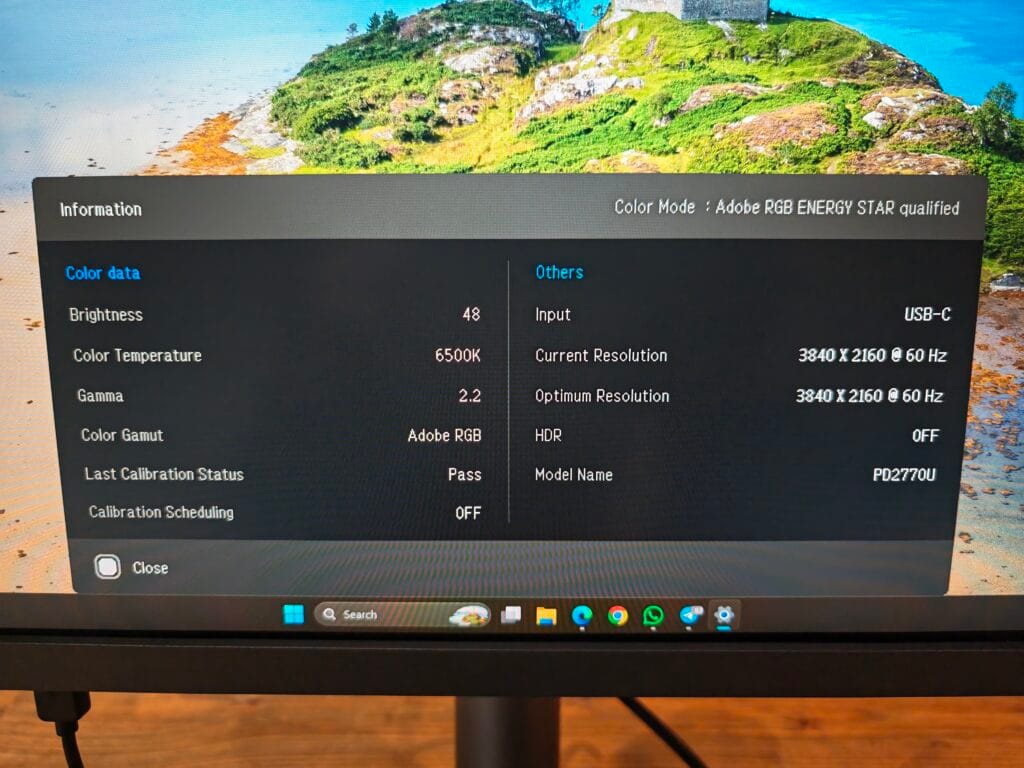
The PD2770U ships from the factory already calibrated, and BenQ includes a printed calibration report in the box specific to your unit. Delta E figures on the supplied report are listed as <=1.5 average, which is within the range considered acceptable for professional colour work. Any Delta E value below 2.0 is generally imperceptible to the human eye.
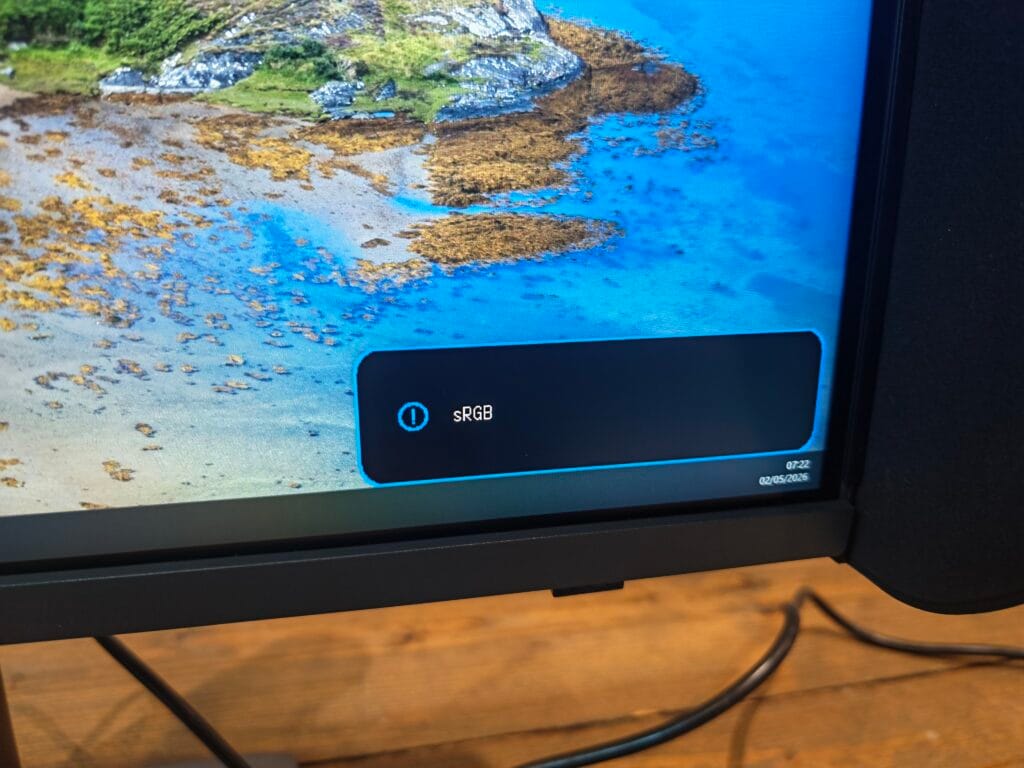
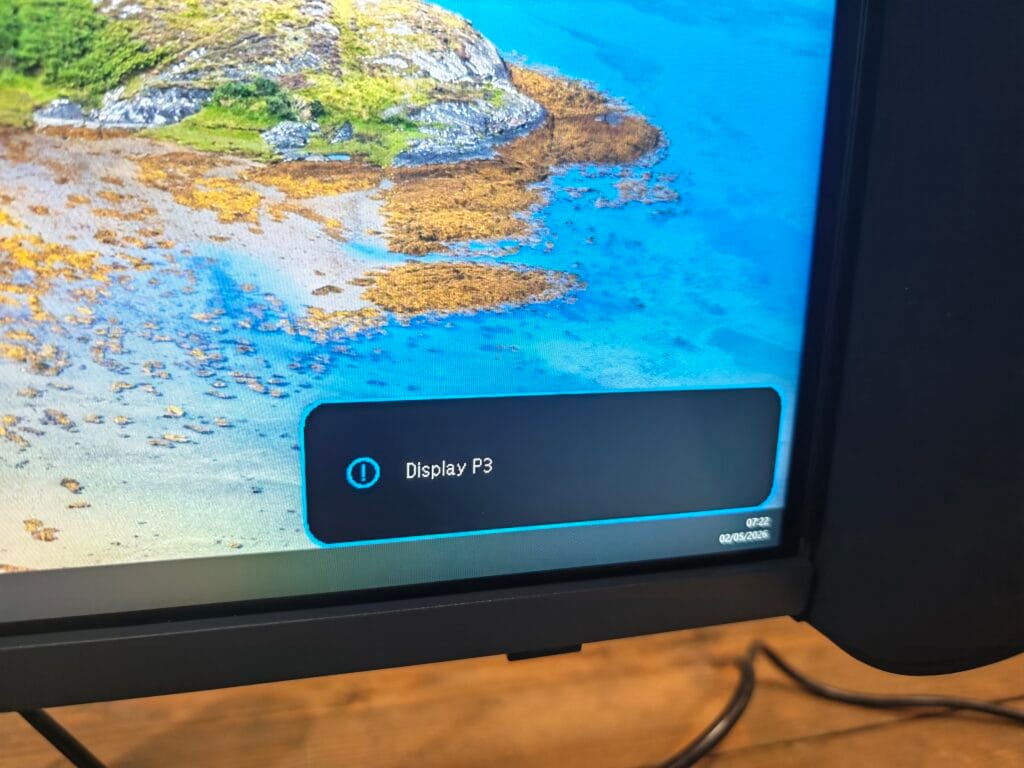
The headline feature is the built-in colorimeter. All built-in colour modes – including Adobe RGB, sRGB, Rec.709, Display P3, DCI-P3, and others – can be re-calibrated directly using this sensor without any external hardware or additional software. The process is managed entirely through the on-screen menu. You can choose which colour modes to include in the calibration run (excluding modes you do not use reduces the time taken), and you can set a schedule: daily, weekly, monthly, or a custom interval.
Before calibration begins, the monitor requires at least 30 minutes of warm-up time. This is standard practice for professional displays and reflects the fact that panel characteristics shift slightly until the display reaches operating temperature. Skipping the warm-up period would compromise the accuracy of the result.
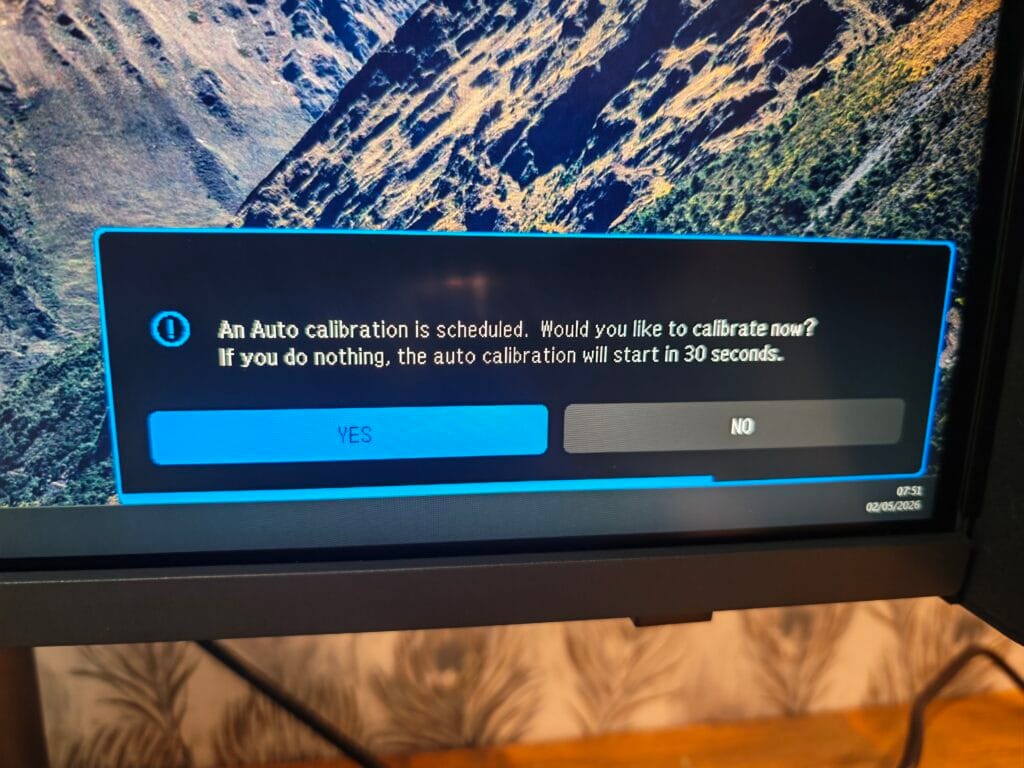
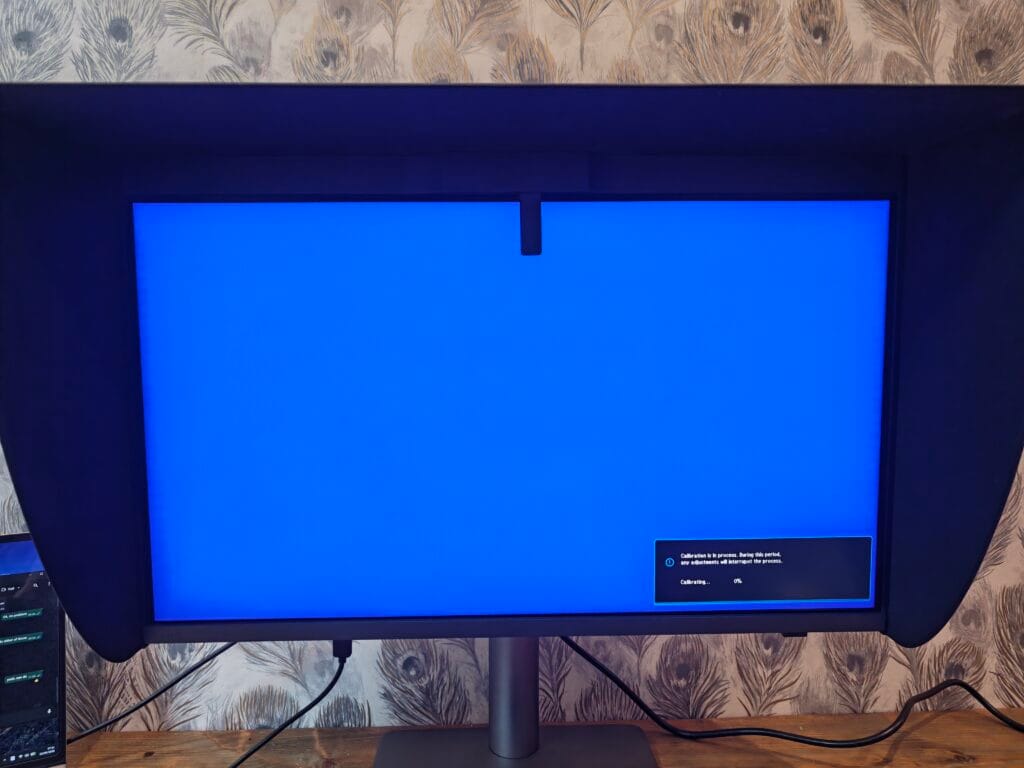
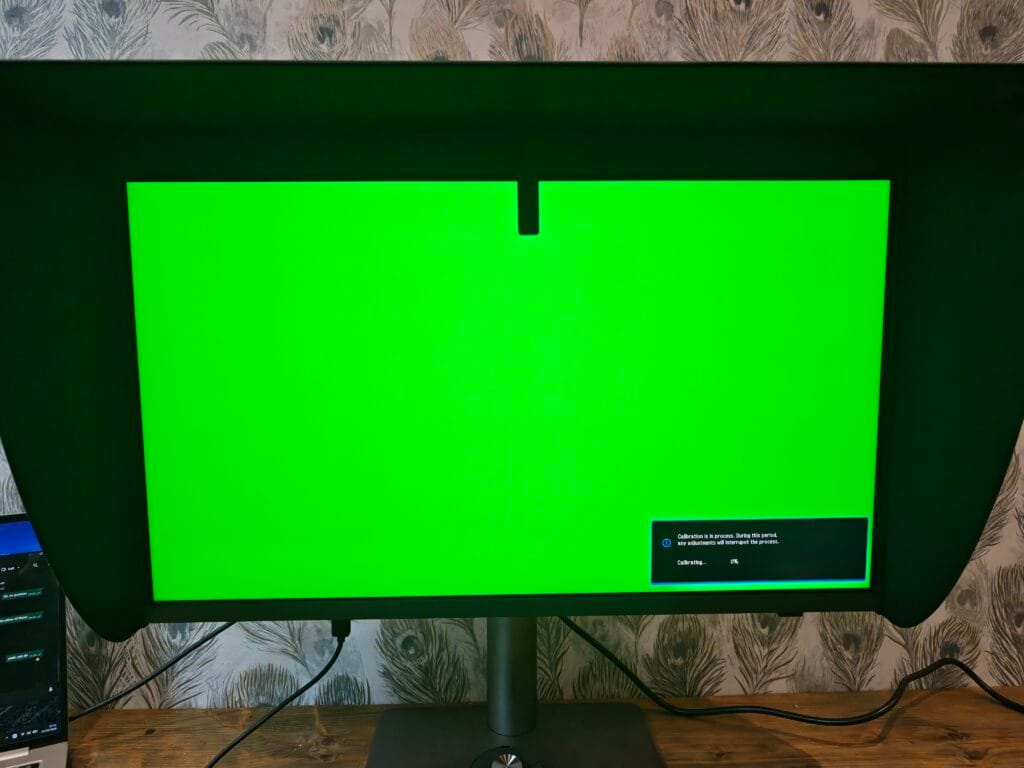
There are two brightness options during calibration. You can set brightness manually to whatever level suits your working environment, or you can enable the ambient light sensor. The sensor is located at the top of the display and reads the light levels in the room, automatically adjusting brightness before the calibration runs. This is a practical feature that removes one of the more common sources of calibration error – calibrating at the wrong brightness for the actual working conditions.
With the most commonly used colour modes selected, calibration takes approximately five minutes. The colorimeter arm extends, sweeps across the panel, and retracts when complete. There is no interaction required from the user once the process has started.
There is, however, a limitation worth knowing about. The built-in colorimeter currently cannot be used with BenQ’s own Palette Master Ultimate calibration software. This means it is not possible to generate a post-calibration accuracy report using the built-in sensor alone. Users who require detailed reporting will need a third-party colorimeter such as those from Calibrite or X-Rite, paired with Palette Master Ultimate. BenQ has stated they are working on an update to enable PMU compatibility with the built-in sensor, so this situation may change in future.
For advanced users who prefer complete control, three custom calibration slots are available through Palette Master Ultimate with a compatible third-party colorimeter. This route supports fixed luminance targets, gamma and white point adjustment, and full post-calibration reporting. Using Palette Master Ultimate with custom modes and Adobe RGB, independent testing recorded an average Delta E of 0.63, and 0.73 for Rec.709. These are strong results and well within what you would expect from a monitor at this price point.
BenQ Display Pilot 2 Application
Display Pilot 2 is BenQ’s companion software for managing monitor settings from the desktop. It is available for both Windows and macOS and handles a range of functions including colour mode switching, ICC profile synchronisation, brightness adjustment, and PIP/PBP configuration.
One of the more useful features is ICC Sync. When you switch colour modes on the monitor, Display Pilot 2 can automatically update the ICC profile at the operating system level to match. This matters if you are switching between colour spaces regularly. Without it, you would need to update the ICC profile manually each time, which introduces risk of working in the wrong profile without realising.
ICC Sync works reliably when using the monitor’s built-in colour modes. Where it becomes less predictable is when mixing built-in modes with custom calibrations created in Palette Master Ultimate. The two software applications handle ICC management differently, and conflicts can arise. If you are creating custom calibrations, manually switching ICC profiles at the OS level is the safer approach.
A particularly practical feature in Display Pilot 2 is the ability to bind specific colour modes to specific applications. You can configure the software so that when you open Lightroom or Photoshop, the monitor automatically switches to Adobe RGB mode and updates the ICC profile. Open DaVinci Resolve and it switches to Rec.709. This works consistently when staying within the built-in modes and removes a regular source of manual switching in mixed-application workflows.
The Hotkey Puck G3 is a wireless dial that integrates with Display Pilot 2. Three programmable buttons allow quick switching between colour modes, inputs, and other display functions. A central knob controls brightness or volume. The G3 also adds the ability to launch applications directly from the puck. It is a well-considered accessory for a display intended to be used across multiple colour spaces throughout the working day.
In Use and Performance
In day-to-day use, the PD2770U delivers on what its specifications promise. Colour accuracy is consistent, panel uniformity is good, and the overall image quality is appropriate for colour-critical work.
The IPS panel produces wide viewing angles of 178 degrees in both directions, with minimal colour shift when viewed off-axis. This is consistent with what you would expect from a quality IPS display. The panel is not OLED, which means black levels will not match what Mini-LED or OLED displays can achieve. The contrast ratio is rated at 1000:1, which is standard for IPS. In practice, this is not a significant limitation for colour accuracy work, where neutral tones and midtones matter more than absolute black depth. IPS also has an advantage in longevity: there is no risk of burn-in, which is worth considering for a monitor used in a professional setting for multiple years.
BenQ offers two uniformity modes. Uniformity First measures the brightness at the centre of the panel and dims any brighter regions at the edges or corners to create a more balanced viewing experience. Brightness First prioritises peak brightness and allows some variance across the panel. For colour work, Uniformity First is the appropriate choice. Independent testing of both modes found that brightness variance stayed below the 10% threshold in both cases, which is the point at which the human eye can typically begin to detect differences. Uniformity First produced the more balanced result overall.
The 60Hz refresh rate will not concern most creative professionals but is worth acknowledging. As higher refresh rates have become standard on phones, tablets, and laptops, 60Hz increasingly feels slower on a desktop display. This monitor is not designed for gaming or fast-moving video playback, but anyone who uses the same machine for both creative work and general computing will notice the difference. It is a trade-off that reflects the priorities of the target audience.
At 163 pixels per inch, the 4K resolution on a 27″ panel produces noticeably sharp text and fine detail. In practice, most users will reduce the display’s output resolution in their operating system to make UI elements more comfortable at typical viewing distances. The real benefit of 4K at this size is the improved rendering of text, icons, and fine image detail rather than using the native resolution directly. The pixel density compares well to other 27″ 4K monitors and makes a visible difference for detailed editing work.
The nano matte coating manages reflections well in most conditions, though in a room with strong overhead or side lighting, some reflectivity is still present. The magnetic shading hood that ships in the box addresses this effectively. It attaches and detaches in seconds, is built to a solid standard, and blocks ambient light without needing to be removed when switching to portrait mode – though it should be noted it does not support portrait use, so it would need to come off if rotating the panel.
The GamutDuo split-screen mode is a practical addition for proofing purposes. Seeing an Adobe RGB image displayed simultaneously in sRGB on one half of the screen gives a useful visual reference for how content will appear on standard consumer displays. It is not a feature most users will need constantly, but it is well implemented when required.
Price and Alternative Options
- ACCURATE & RELIABLE COLOR MANAGEMENT: 99% Adobe RGB, 99% DCI-P3, and 100% Rec.709 coverage with Delta E ≤ 1.5 for accurate colors trusted by creative professionals.
- HARDWARE CALIBRATION & BUILT-IN CALIBRATOR: Maintain long-term color consistency with the hardware calibration, built-in calibrator, and light-adaptive, auto-scheduled recalibration.
- UNIFORMITY CALIBRATION: Corner-to-corner visual uniformity fine-tuned to human visual perception for reliable, natural viewing across the entire screen.
- ERGONOMIC DESIGN & CREATOR-READY FEATURES: Magnetic shading hood, wireless Hotkey Puck, and adjustable stand support comfort and efficiency for design, video, and color-critical tasks.
- ALL-IN-ONE USB-C & FLEXIBLE CONNECTIVITY: 96W USB-C power delivery, RJ45 LAN, KVM switch, and DisplayPort daisy chain streamline setup and workflow for creative studios.
Due to the professional nature of the BenQ Creative Pro PD2770U 4K, it comes with a professional price tag of £1,499.99.
That is well beyond what your average consumer would pay for a 27″ 4K monitor, and it sits in the upper end of pricing for professional monitors.
ASUS has various ProArt models at a lower price point, including the ASUS 27″ ProArt Display PA27UCDMR 4K UHD OLED monitor at £1,150 (this does not include a colourimeter), the ASUS 31.5″ ProArt Display PA32QCV 6K IPS monitor at £1,300 (again, no colourimeter), and the ASUS 31.5″ ProArt QD-OLED PA32UCDMR-K Professional Monitor at £1,500, which includes a MCA02 3-in-1 colourimeter but does not offer automatic calibration in the same way as this BenQ.
There are options further up the price ladder as well. ASUS also offers the 27″ ProArt Display PA27USD OLED Monitor at £1,800, which benefits from a 240Hz refresh rate, and the 24″ ProArt PA24US Professional On-Set 4K 12G-SDI DisplayHDR 600 Monitor at £1,600.
Apple’s 27″ Studio Display with standard glass and a 5K Retina display comes in at £1,499, again without a colourimeter. It is worth noting that many of these professional monitors target slightly different audiences, with some being more geared towards video production workflows than general creative work.
The key differentiator for the PD2770U at this price is the built-in calibration. Purchasing a standalone colourimeter such as a Calibrite ColorChecker Display Pro adds around £130 to £170 to the cost of any competitor monitor that lacks one. If you factor in the ongoing time saving from automated calibration over several years, the effective cost gap between the PD2770U and some cheaper alternatives narrows considerably.
That said, the ASUS ProArt OLED options offer deeper blacks and stronger contrast, which some workflows may prioritise. The choice between IPS and OLED for professional work is not straightforward. IPS offers better longevity, no burn-in risk, and often more consistent colour accuracy, while OLED provides significantly superior contrast and black levels. Neither is objectively superior for all use cases.
Overall
I will admit I do not have enough hands-on experience to say definitively whether the BenQ Creative Pro PD2770U is better than a cheaper manually calibrated 4K 27″ monitor when evaluated purely on panel performance.
But, as a former business owner and someone currently working in IT, I can appreciate the value of a product that saves time, which in turn saves money. If you are calibrating your monitor every week or two, the built-in automated calibration could save significant time over the product’s life, which in turn means that it significantly reduces the total cost of ownership compared to other options. It also removes the problem of calibration complacency. If the display handles it automatically on a schedule, you are far more likely to stay on top of it than if it requires manual intervention with external hardware.
There are limitations. The built-in colorimeter does not currently work with Palette Master Ultimate, which means post-calibration reporting is not available through the built-in sensor. The ICC sync feature, while reliable for built-in colour modes, can produce inconsistent results when combined with custom PMU calibrations. The 60Hz refresh rate is sufficient for the intended use case but feels increasingly dated on a general-purpose desktop. And the Nano Matte coating, while effective, is not quite the truly matte finish found on BenQ’s SW-series photography displays – it sits closer to semi-gloss, which may give some colour-critical users pause.
Despite those caveats, the PD2770U makes a strong case for itself. The colour accuracy results are excellent, the connectivity is well thought out for professional use, the ergonomics are comprehensive, and the package – including the magnetic shading hood, Hotkey Puck G3, and calibration report – represents a complete out-of-box solution. The Calman Verified, Pantone Validated, and Pantone SkinTone Validated certifications add confidence for buyers working on print or skin tone-sensitive projects.
For these reasons, I think the BenQ Creative Pro PD2770U is an excellent investment for a creative professional or small studio. The automatic calibration alone changes what this monitor offers relative to comparably specified displays, and the rest of the specification holds up well at the price.
BenQ Creative Pro PD2770U 4K Monitor Review
-
Overall - 90%90%
Summary
The BenQ Creative Pro PD2770U is a well-executed professional display that differentiates itself with genuinely useful automation rather than headline specifications alone. The built-in self-calibration system is its defining feature, removing both the time and discipline typically required to maintain colour accuracy, which has clear long-term value for studios and teams. Colour performance is strong, supported by wide gamut coverage, low Delta E, and solid uniformity, while the inclusion of USB-C with 96W power delivery, KVM functionality, and thoughtful accessories makes it a practical all-in-one solution. There are compromises, notably the 60Hz refresh rate, limited integration of the internal colorimeter with advanced calibration workflows, and a coating that sits closer to semi-gloss than true matte. However, for users prioritising consistent, low-maintenance colour accuracy over absolute panel innovation, it presents a compelling and efficient option.
Pros
- Automatic self-calibration saves time
- Excellent colour accuracy out of box
- Strong connectivity and USB-C power
- Good uniformity and panel consistency
Cons
- Limited calibration software integration
- 60Hz feels dated for desktop
- Nano matte not fully matte
- High price for IPS panel

I am James, a UK-based tech enthusiast and the Editor and Owner of Mighty Gadget, which I’ve proudly run since 2007. Passionate about all things technology, my expertise spans from computers and networking to mobile, wearables, and smart home devices.
As a fitness fanatic who loves running and cycling, I also have a keen interest in fitness-related technology, and I take every opportunity to cover this niche on my blog. My diverse interests allow me to bring a unique perspective to tech blogging, merging lifestyle, fitness, and the latest tech trends.
In my academic pursuits, I earned a BSc in Information Systems Design from UCLAN, before advancing my learning with a Master’s Degree in Computing.
I’m proud to share that Vuelio has consistently ranked Mighty Gadget as one of the top technology blogs in the UK. With my dedication to technology and drive to share my insights, I aim to continue providing my readers with engaging and informative content.
I work directly with the companies he reviews products for or their chosen PR agency.
For Social Media, you can find me on: